Quickstart: zero to first launch
By the end of this tutorial, your first email sequence is running against 50 real leads. You won’t need any UI clicks beyond the Gmail OAuth screen.
This same flow works two ways. You can click through the product yourself, or you can let an AI agent drive 10ex over MCP. Switch the tab below to see whichever applies to you.
What you’ll learn
- How the four primitives (connector, knowledge, segment, agent) fit together
- How to hire and configure Nova, the email sequence agent
- How the approval gate keeps you in control before anything sends
Before you start: a Gmail account you can connect, a 50-row lead CSV, and 15 minutes. If Gmail is already connected, you’ll finish closer to 10 minutes.
- Sign up at 10ex.ai/signup , then verify your email.
- Fill brand knowledge: Settings → Company Research (company info plus ICP), Settings → Brand Voice, and Settings → Brand Kit. Or click Import Brand Kit to auto-fill from your domain.
- Connect Gmail: Settings → Integrations → Gmail → Connect.
- Import leads: CRM → Leads → Add Leads → Import Leads. CSV or Excel works, and 50 rows is plenty for a first run.
- Create a segment: CRM → Segments → Add Segments → New Segment; build a filter group; Create Segment.
- Hire Nova: Agent Hub → Agent Store → Email Sequence Generation Crew → Hire Nova.
- Configure and preview: Active Agents → Configure; pick the segment and sender connector; click Run; review the preview.
- Approve: when the tile shows Approval Required, click Approve.
- Track: Marketing → Email Sequence shows sent, opened, and replied counts per recipient.
Where this lives in the product
The expanded sidebar is the canonical map. Every step above corresponds to a sidebar entry.
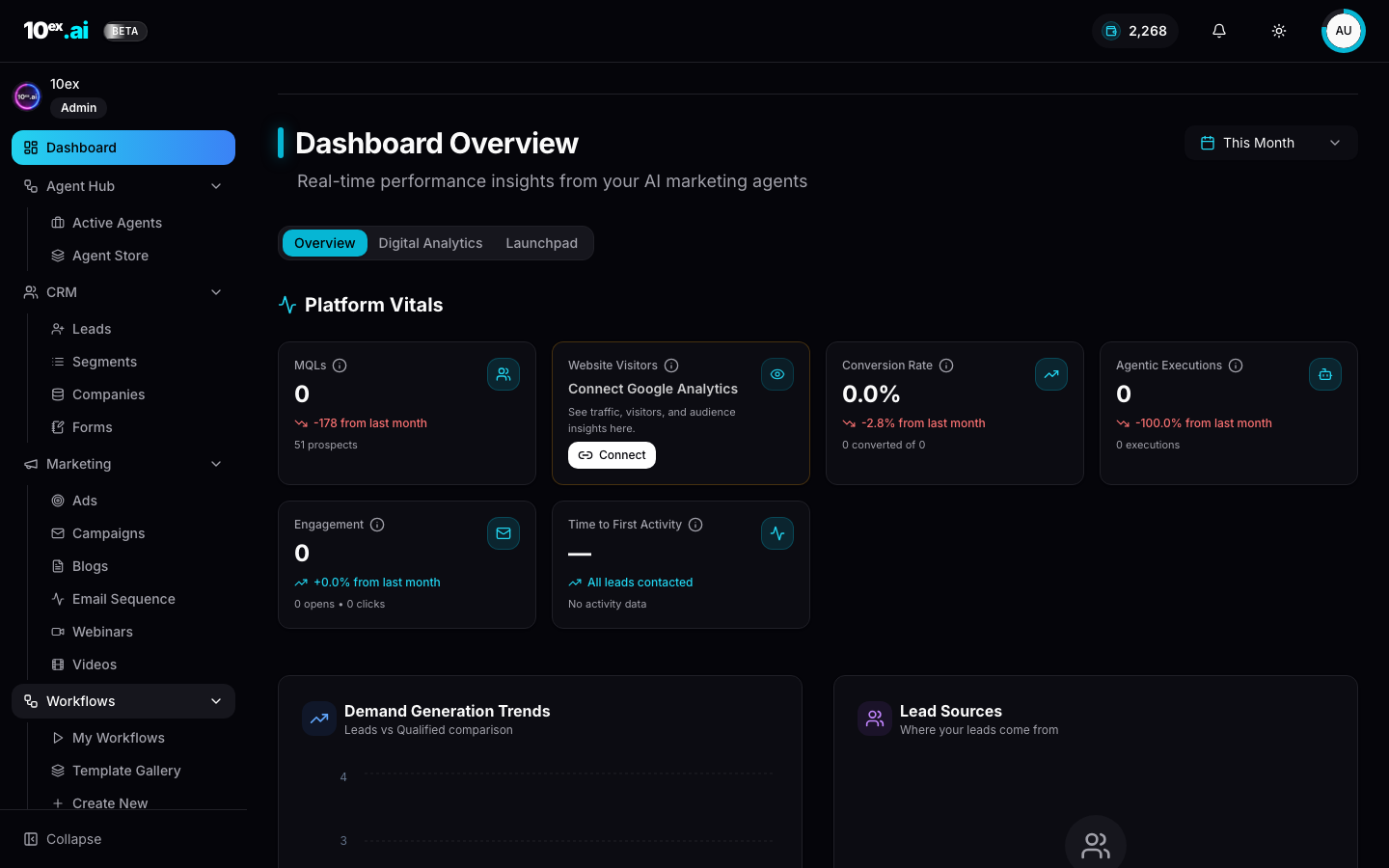
A faster path: the Launchpad
If you want the platform to plan the first 30 days for you instead of running this checklist by hand, open Dashboard → Launchpad after step 2. It generates a 3-phase, 30-day roadmap from your brand knowledge and sequences exactly the right agents at each step. It also recommends a replacement for steps 4 through 9 of this quickstart.
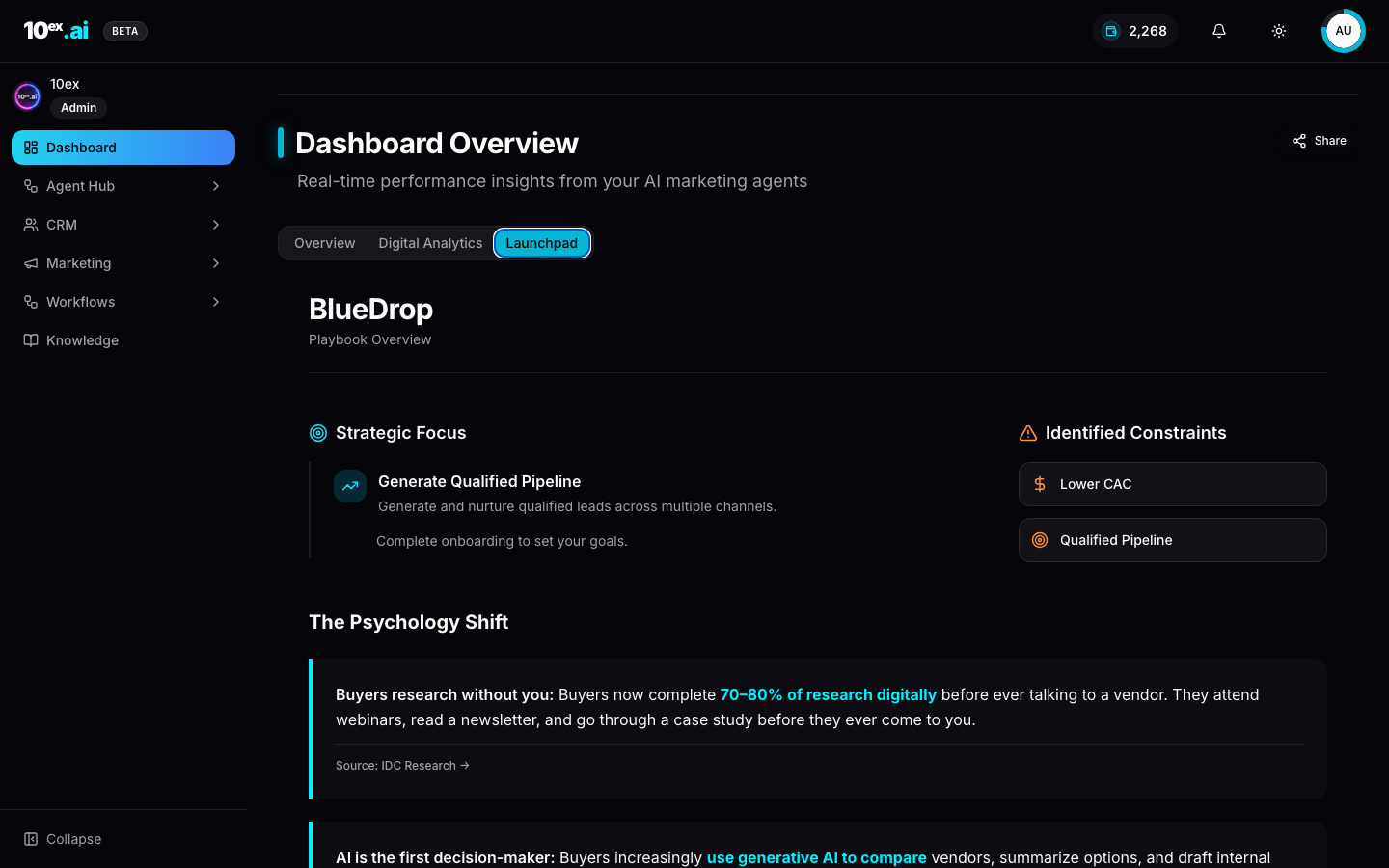
See Launchpad: strategic playbook for the full pattern.
Step-by-step screens
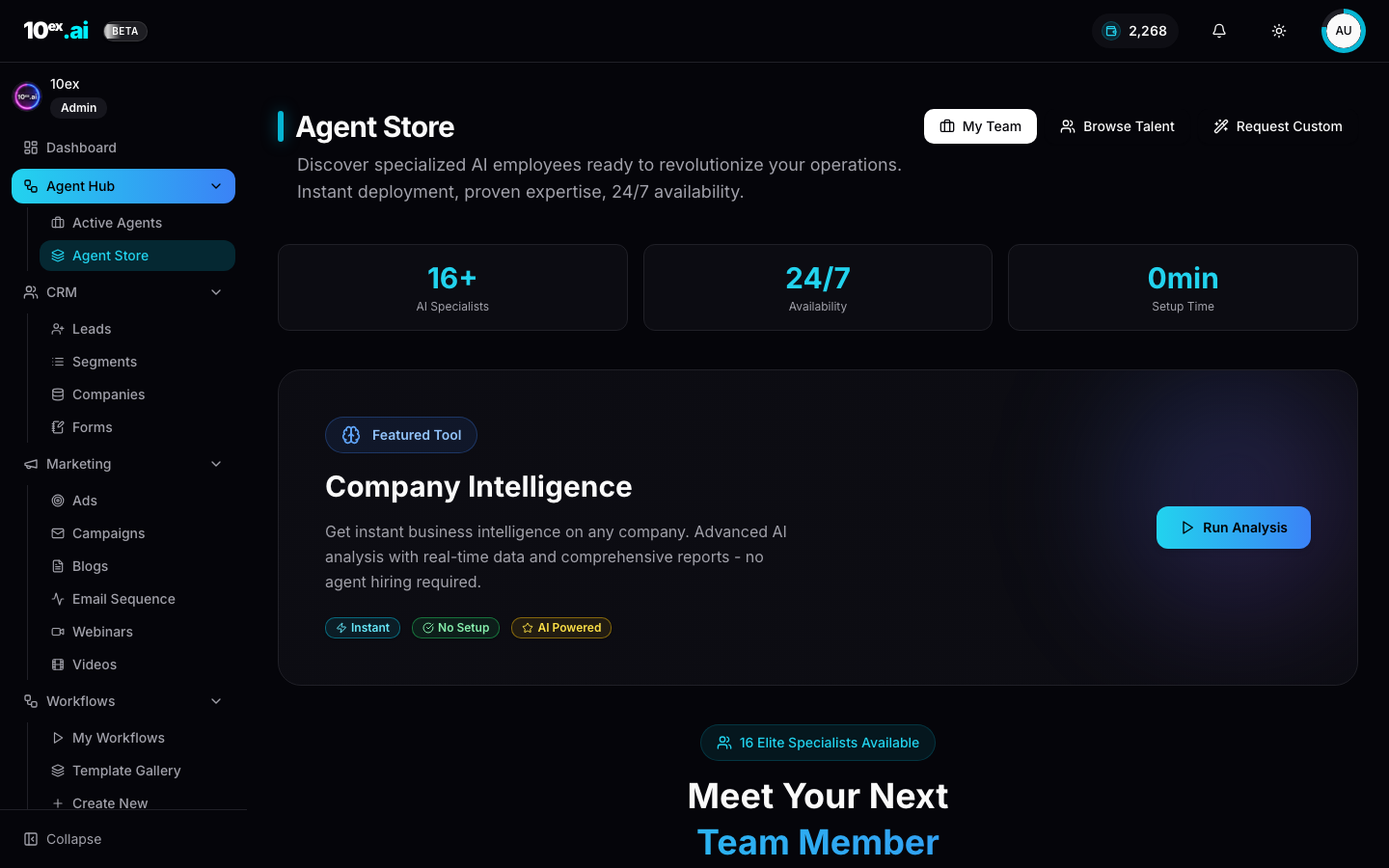
1 · The Agent Store
Where you find Nova (Email Sequence Generation Crew). Filter by Email Marketing if you want to see Orion next to her.
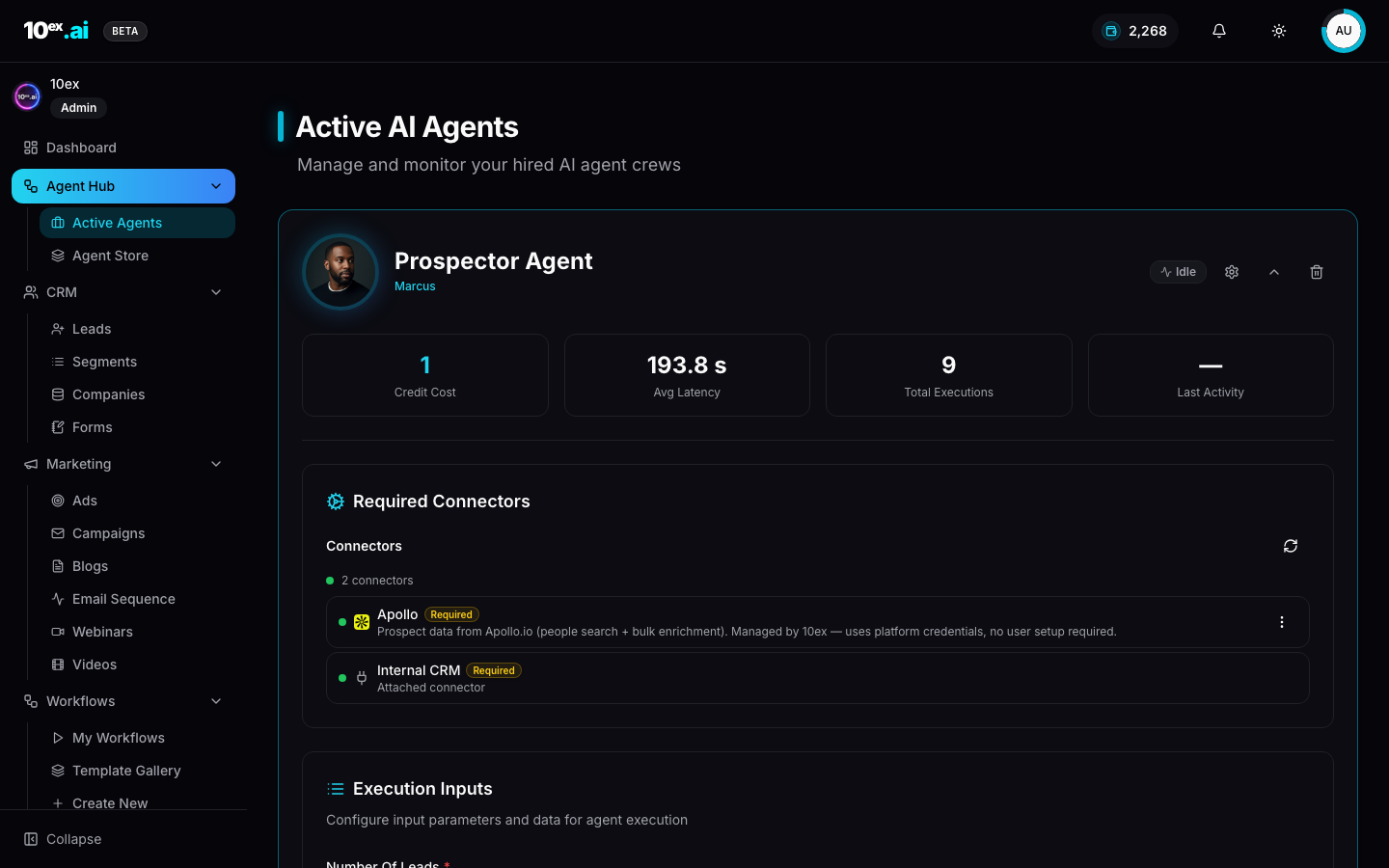
2 · Configuring an agent
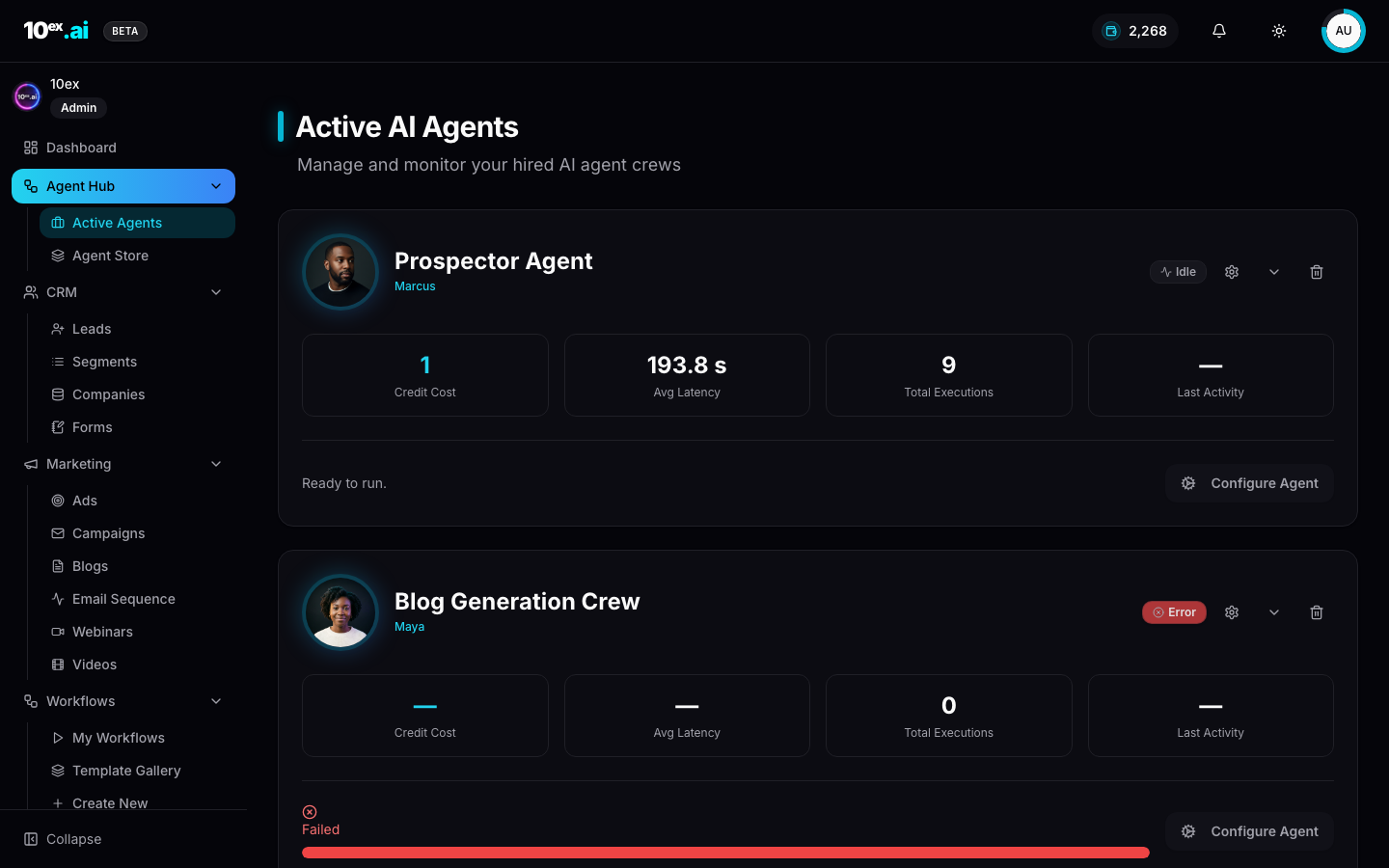
Once hired, every agent has a Configure panel showing Required Connectors, Execution Inputs, and Recent Output. Below is Marcus (Prospector). The exact same shape applies to Nova.
3 · Approval gate
Nova won’t actually send until you approve. The Active Agents tile shows Approval Required and surfaces inline Approve and Reject buttons.
What you just did
You connected the four primitives every 10ex motion needs: a connector (Gmail), brand knowledge (so emails sound like you), a segment (who to send to), and an agent (Nova, the Email Sequence Generation crew). Every other playbook in 10ex is the same shape with different connectors and a different agent.
How to tell the run is healthy
Open Marketing → Email Sequence a few minutes after approval. You should see the sent count climbing and at least one open within the first hour. If sent stays at zero for more than 10 minutes, jump to the troubleshooting section below.
If something looks wrong
- Gmail OAuth loops back to the connect screen. You probably denied a scope. Disconnect under Settings → Integrations → Gmail and reconnect, accepting all requested scopes.
- Preview shows generic copy. Brand voice is empty or thin. Open Settings → Brand Voice and paste at least three real example emails so Nova can match your tone.
- Approve button is greyed out. Your sender connector wasn’t selected on the configure panel. Click Configure on the Active Agents tile, pick Gmail as the sender, and re-run the preview.
What to do next
- Go deeper: Email Sequence Generation agent reference
- Add a second channel: Generate and publish your first blog with Marcus
- Learn the schema: Brand knowledge, what every agent reads
- For developers: MCP setup guide
Sign me up at acme.com, ingest example.com into knowledge, connect Gmail, import these 50 leads, and launch a 3-email nurture sequence with Nova (email-sequence-generation).