Agent Hub
The Agent Hub is where you assemble your AI team. Two surfaces:
- Agent Store at
/workflows/agentsis the hire page. Every persona in the cast shows up here as a card with level, channel, and credit cost. - Active Agents at
/agent-hub/active-agentslists agents you’ve hired, with run stats and pending approvals.
How to hire an agent from the Agent Store
The store is grouped by channel: Email Marketing, Ads, Content Creation, Research & Analysis, Prospecting, and Automation. Each card shows the persona, slug, level, one-line description, and per-run cost. Hire is one click.
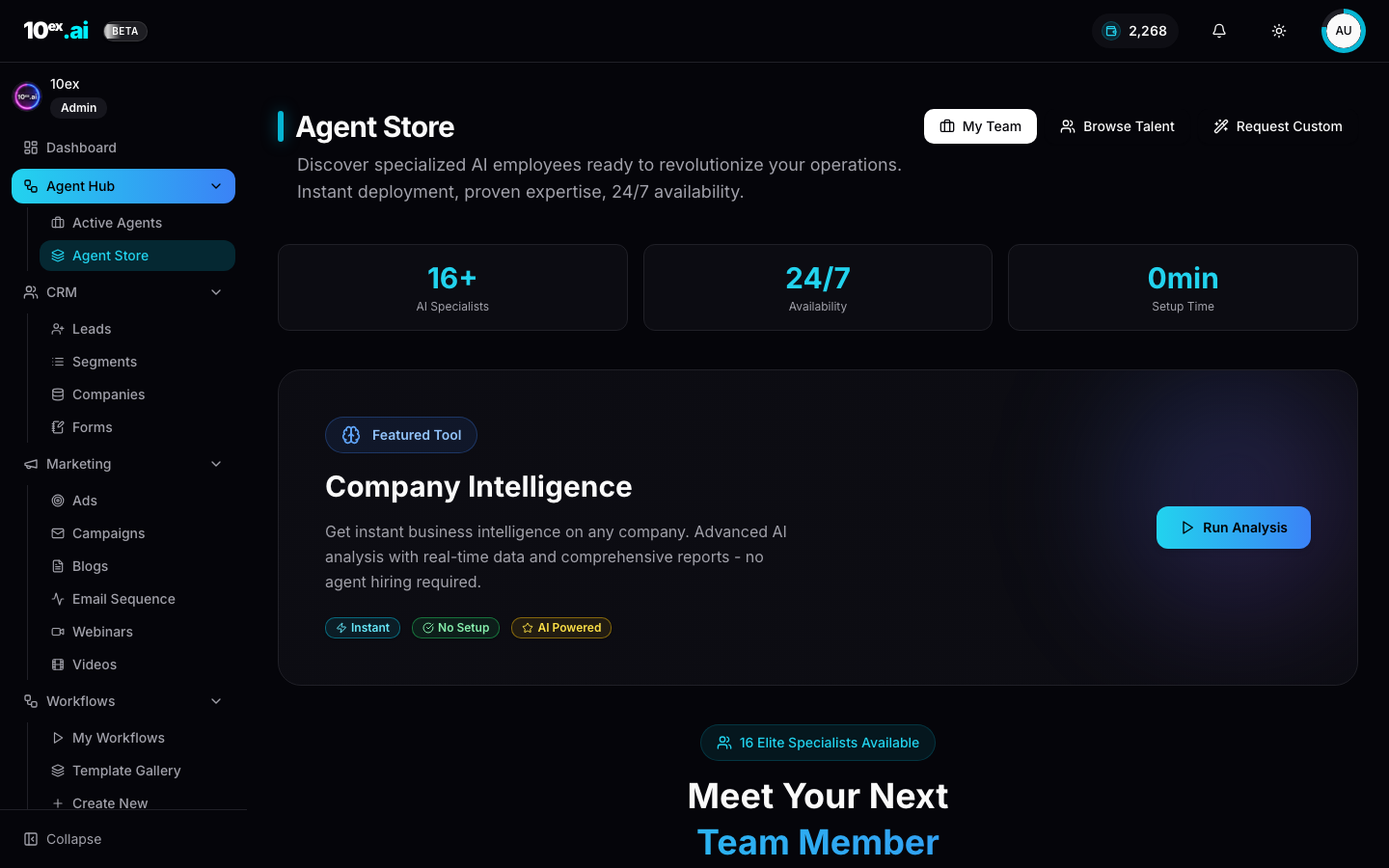
The page also surfaces Featured Tools at the top. These are single-purpose utilities that don’t need an agent to be hired. Right now there’s just one: Company Intelligence, an instant business-intel report on any company. Use it to enrich a lead before opening Marcus or Prospector.
Tabs inside the store
- Browse Talent is the default catalog view.
- My Team is the same as Active Agents, rendered as cards in the store layout.
- Request Custom lets you submit a brief for a custom CrewAI crew. Available on the Pro tier (see Credits & pricing).
When to hire vs use a featured tool
Hire an agent when you want a multi-step motion (research, draft, review, ship) or when you’re going to use the agent more than once. Reach for a featured tool when you need one specific output right now and don’t want to think about configuration.
Active Agents
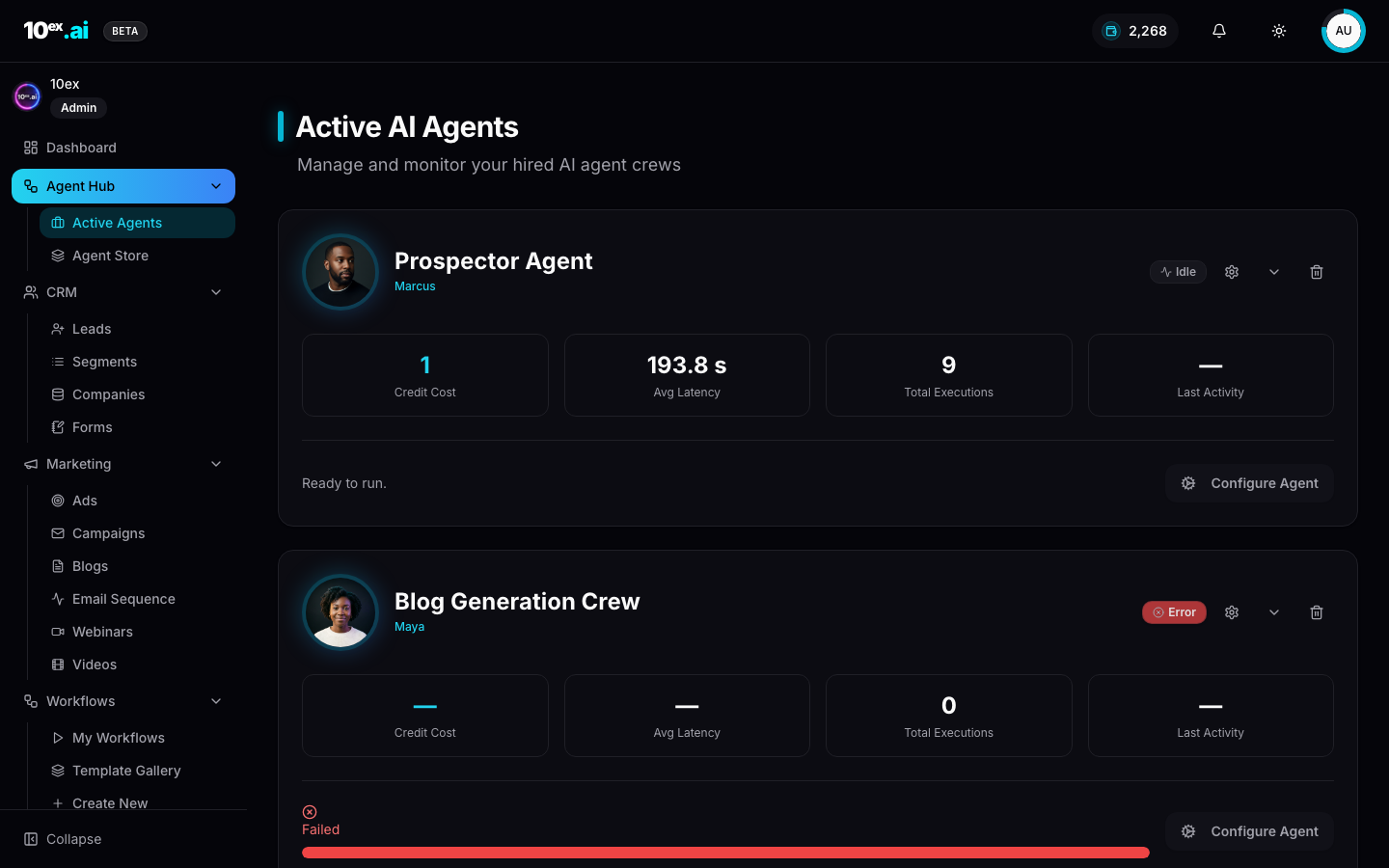
Once hired, an agent appears at /agent-hub/active-agents with operational state: credit cost per run, average latency, total executions, last activity, and current status (Ready to run, Approval Required, Failed).
Per-tile actions
| Status | What you can do |
|---|---|
| Ready to run | Configure Agent, fill inputs, Run |
| Approval Required | Approve or Reject inline (see Approval workflows) |
| Running | wait. The tile updates via SSE |
| Failed | inspect the error, fix the input, re-run |
Unhire Agent removes the agent from your active list. Run history is preserved, and re-hiring is one click.
How to configure an agent
The Configure panel has three sections:
- Required Connectors: green when satisfied, red with a Connect link when missing. Some connectors (Apollo, Internal CRM) are platform-managed. They show as “Required” with no setup needed.
- Execution Inputs: typed form with required-field validation. Some inputs are simple (Number of Leads), some are tag-style (Job Titles, Locations), some are multi-line. Advanced Options is collapsed by default and exposes optional knobs like enrichment depth and Apollo filters.
- Recent Output: the last run’s result rendered inline. For Marcus or Prospector this is a lead table with CSV export and Toggle columns. For Nova it’s the email sequence preview. For Marcus or Blog it’s the draft.
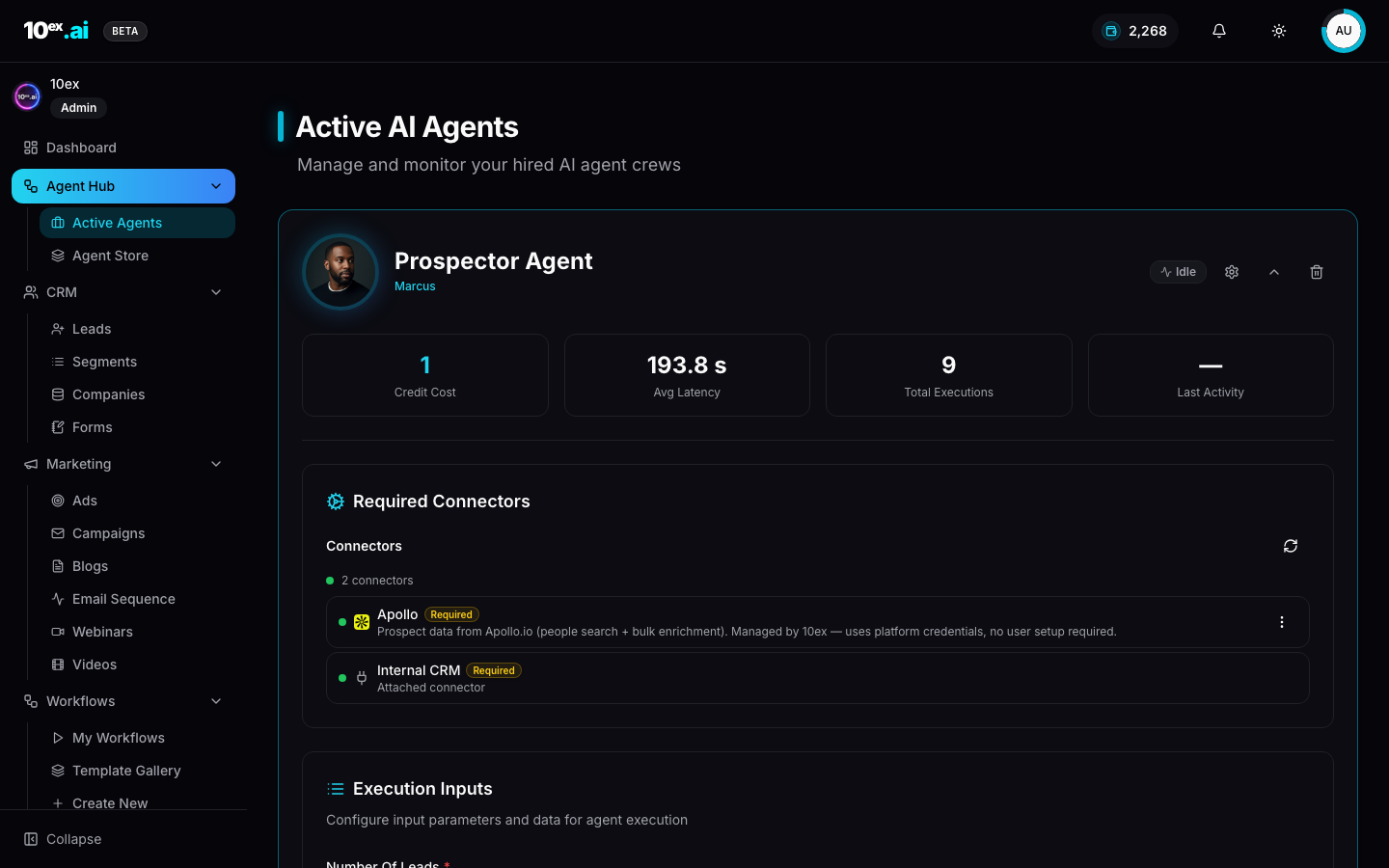
A concrete example: hiring Marcus/Prospector and configuring it for “VP Engineering, San Francisco, 25 leads” produces an enriched lead table you can export or push straight into a segment.
Hire flow over MCP
list_agents_in_store() // returns 16 personas with slug, level, channel, credit_cost
get_agent_details({ slug: "email-sequence-generation" }) // returns required_connectors, required_knowledge, input_schema, output_schema
list_active_agents() // your hired team plus last_activity per agent
Hiring is implicit over MCP. Calling any launch_* tool hires the agent if it isn’t already active.
Common questions
Does unhiring delete my run history? No. Unhiring removes the tile from Active Agents but keeps every past run accessible.
Can I run the same agent on two different inputs at once? Yes. Each Configure panel kicks off an independent run. The tile shows the most recent.
Why is my Configure panel red? A connector is missing. Click the red Connect chip to start the OAuth flow. Once it flips to green, run.
Related
- The cast: named agents: the full roster
- Approval workflows: what happens when a tile says Approval Required
- Credits & pricing: what each persona costs per run