The CMO: one chat, every page
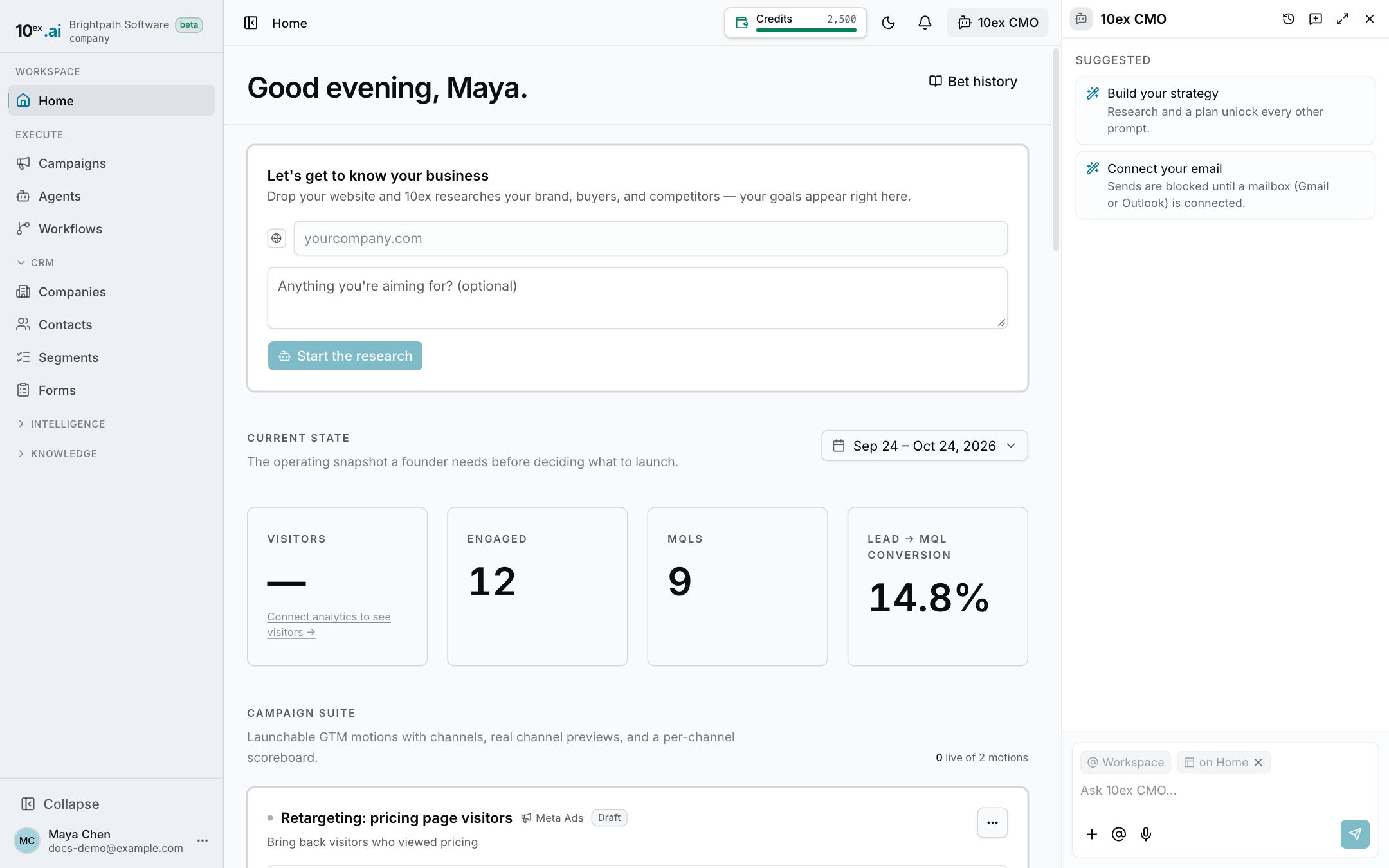
The CMO is the AI you talk to in 10ex. It lives in a chat panel docked on the right of every page. It can answer questions about your data and do the work: build a segment, draft and launch campaigns, run agents, set up workflows, or explain a report.
For how to use it day to day, see Work with the CMO chat.
One chat that stays put
The chat doesn’t change when you move between pages. A conversation you started on Home is still there when you open a campaign. Moving around never interrupts a reply that’s still being written.
You can resize the panel, close it, or expand it to full screen. Opening a link from inside the chat returns it to the docked panel so you can see the page.
Click New chat to start a fresh conversation. Past conversations are in the chat history, which you can search.
Telling it what you mean with @
Because the chat doesn’t follow your navigation, you point it at things on purpose. Type @ in the message box to open a menu:
- This page adds whatever you’re looking at, such as the campaign or segment that’s open.
- Or pick a specific strategy, campaign, content piece, agent or segment.
The CMO then reads that item’s real data before it answers.
Some pages also have an Ask CMO button that opens the chat already pointed at that page.
What it knows
Every reply is grounded in:
- your company profile from onboarding (brand, buyers, competitors),
- your knowledge library of uploaded and synced documents,
- memory: company truths and your personal preferences,
- your live CRM, campaign and report data.
See Knowledge and memory.
How it shows its work
While it works, the chat shows a live timeline of what it’s doing in plain words, like “Searched the web” or “Checked your data”, with the sites it read. When it finishes, the timeline closes into a one-line summary you can expand.
For longer jobs it shows a plan with a progress bar (“2 of 6”) and checks off each step as it really finishes. Results come back as cards: a segment with sample rows, a campaign with its subject and recipients, a file you can download, or a workflow draft to review.
When it needs you, it asks with an options card. Pick a choice or type your own answer.
Asking before it acts
When the CMO wants to do something that needs approval, such as sending an email or launching an ad, it shows an approval card with exactly what it will do. You can Edit the email or post right in the card, then Approve or Reject. Nothing happens until you decide.
If a single action would cost more than 500 credits, it tells you the price and asks first.
It learns over time
- When you tell it something worth keeping, it saves it to memory and shows a small Remembered chip.
- Thumbs up and down under each reply tell the team what worked and what didn’t.
Same CMO, other places
The same CMO runs the onboarding research, builds strategies, and powers the AI buttons across the app, such as Draft with AI in the email editor. A result card from an agent run offers Make this recurring, which drafts a workflow that runs the same job on a schedule.