Skills
A skill is a written playbook: how to write a cold email, how to plan a Meta campaign, how to brief an image. Agents and the CMO follow skills when they do that kind of work. Edit a skill once and every future run uses your version.
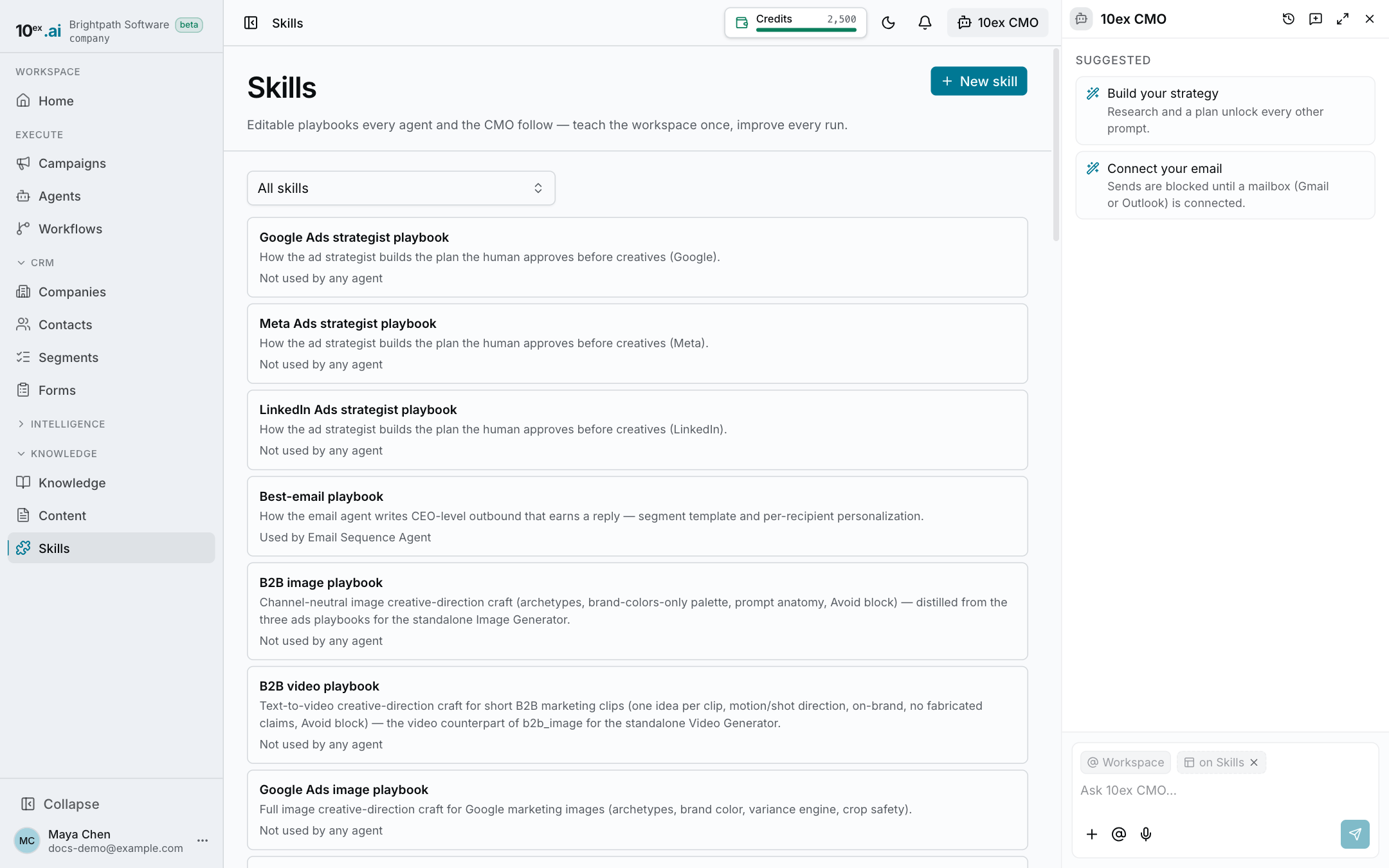
Open it from the sidebar: Skills (https://app.10ex.ai/skills ). For the idea behind skills, see Skills.
The library
10ex ships with built-in skills for email, ads (plans, copy and images for each ad type on Meta, Google and LinkedIn), blogs, images, video and CRM scoring. You can add your own next to them.
Each row shows the skill’s name, its one-line description and who uses it, for example “Used by Blog Agent, Email Agent +2 more”. Use Filter skills by agent to see only the skills one agent uses.
Click a skill to open it beside the list.
Edit a skill
- Open the skill and click Edit.
- Change any of the three fields:
- Skill name
- When to use this: one line the AI reads to decide when to load the skill. Make it specific.
- Playbook: the Markdown body, up to 100,000 characters.
- Save.
Your edits are versioned. History lists earlier versions so you can restore one. On a built-in skill, Reset to default brings back the original. Your edits stay in History.
Built-in skills have a few rules that must stay in the playbook, because they stop a known failure (for example, never inventing a statistic). If your edit removes one, the save is refused and the skill shows Floor: check failed with the reason. To work around a rule on purpose, create your own skill instead and attach that.
The Eval line on a skill shows whether the current version passes these checks and, when a test has been run, how much the skill improves results compared with running without it. “No eval run recorded yet” means no test has been run on it.
Create your own skill
- Click New skill.
- Fill in Skill name (for example “Webinar follow-up emails”), When to use this (for example “Writing follow-ups to people who attended a webinar.”) and the Playbook.
- Under Attach to agents, pick the agents that should use it.
- Click Create skill.
You can also ask the CMO to write or update a skill in chat.
Choose which agents use a skill
An open skill shows a chip for every agent. Click a chip to attach or detach the skill.
- An agent can hold up to 12 attached skills. Agents at the limit are greyed out.
- A chip marked · built in means the skill is part of that agent’s fixed steps. Turning it off unpins it from that step after you confirm.
Attached skills are loaded only when the task matches the skill’s When to use this line. Built-in steps always use their skill.
Delete a custom skill
Open it and click Delete skill. This removes it from the library, and agents that used it stop loading it. Built-in skills can’t be deleted, only reset.
Permissions
| Action | Who |
|---|---|
| View skills | Everyone |
| Create, edit, attach | Member and above |
| Delete custom skills | Manager and above |