Home and onboarding
Home is the first item in the sidebar. While you’re onboarding, it shows the research 10ex is doing on your company. After that, it shows your strategy, its campaigns, and how the business is doing.
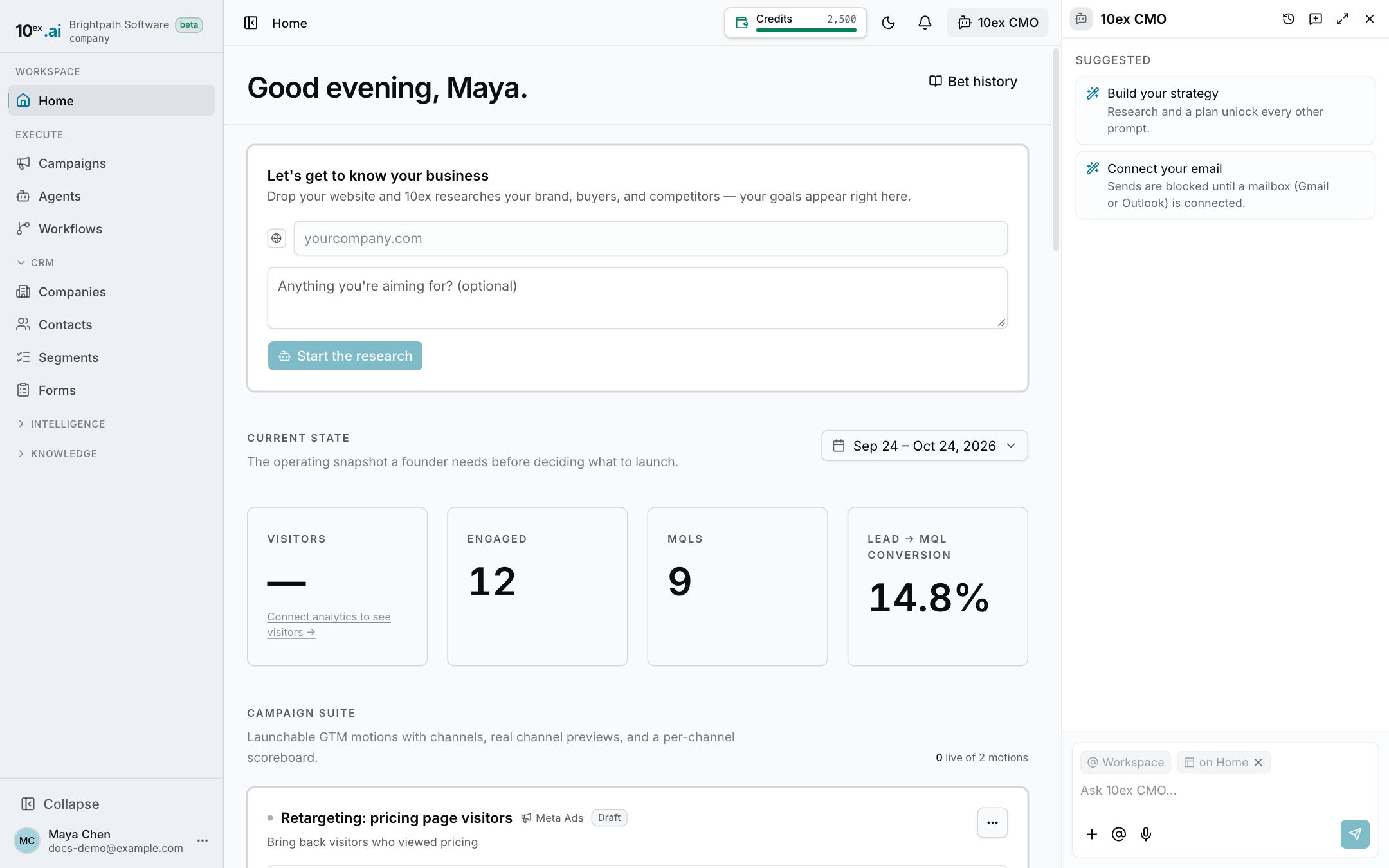
The CMO chat sits docked beside Home the whole time. See CMO chat.
Sign up
- Go to app.10ex.ai/signup .
- Enter your name, work email, a password (at least 8 characters), and your company website, e.g.
yourcompany.com. - Click Create account.
You can also use Continue with SSO on the login page (Google, Microsoft, or your company’s SSO). A first-time SSO user goes through the same onboarding and is asked for the company website.
Every new workspace starts with 2,500 credits. See Credits and billing.
The onboarding steps
A progress bar across the top of Home shows four steps: Research, Goal, Angles, and Plan.
1. Research
10ex reads your website and the web to build a profile of your company: your brand, your buyers, and your competitors. This takes about a minute. Home shows a live checklist while it works.
Everything your agents write later is grounded in this profile.
2. Review what it learned
When research finishes, Home reads Here’s what I learned. and shows the profile:
- Brand DNA: positioning statement, voice (“Sounds like”, “Avoid”), and your Brand palette.
- Ideal customer: titles, industries, company size, and segments.
- Positioning: category, differentiators, proof points, and competitors.
- Intent signals and Gaps to close.
If it looks right, click Looks good — continue. If it got your company wrong, click Re-run research (this replaces the profile). You can edit the profile later in Company and brand.
If no brand colors were found in your logo, set them in Settings → Brand.
3. Pick a goal
Under Where should we focus? pick the goal you want to chase, or type your own in the chat. 10ex then runs a research team of four agents that score different ways to go to market for that goal. This takes about five minutes.
While you wait, a card called Get ready to launch while I work suggests setup you can do in parallel: connect a mailbox or ad account, import your contacts, or build a target segment.
4. Approve an angle
When scoring is done, the Research report opens. It ranks the angles and marks the one the agents recommend. You can pick a different angle, Push back on the wedge, Change the goal, or Re-run research.
Click Approve & build plan. 10ex builds a 90-day plan around that angle and drafts the campaigns for it. The report has Copy link and Print / PDF if you want to share it.
See Strategy, bets and reports for how the plan is measured.
The Home dashboard
After onboarding, Home has these parts, top to bottom.
Journey strip
One row that says where you are and what’s left, for example “Campaigns built — 2 of 4 ready to launch · 2 need attention”. Click it to open the chat on the conversation it belongs to.
Current state
Four numbers for the selected date range (last 30 days by default):
| Tile | Where the number comes from |
|---|---|
| Visitors | Google Analytics. Click Connect analytics to see visitors if it’s not connected. |
| Engaged | Contacts with a form submission, email, or call logged in the range. |
| MQLs | Contacts created in the range whose lifecycle stage is MQL. |
| Lead → MQL conversion | MQLs divided by contacts created in the range. |
Strategy and campaigns
Your current strategy: its theme, success targets, and target segment, followed by the campaigns it built. Each campaign card shows its status and what it still needs before launch.
Recommendations for what to do next come last. Picking one pastes it into the chat box so you can edit it before sending.
Bet history
Bet history (top right) lists past strategies with how each one did against its targets.
Common questions
Research says it didn’t finish. Click Re-run research on the report page.
I closed the chat during onboarding. Click 10ex CMO in the top bar. The conversation is where you left it.