Team and roles
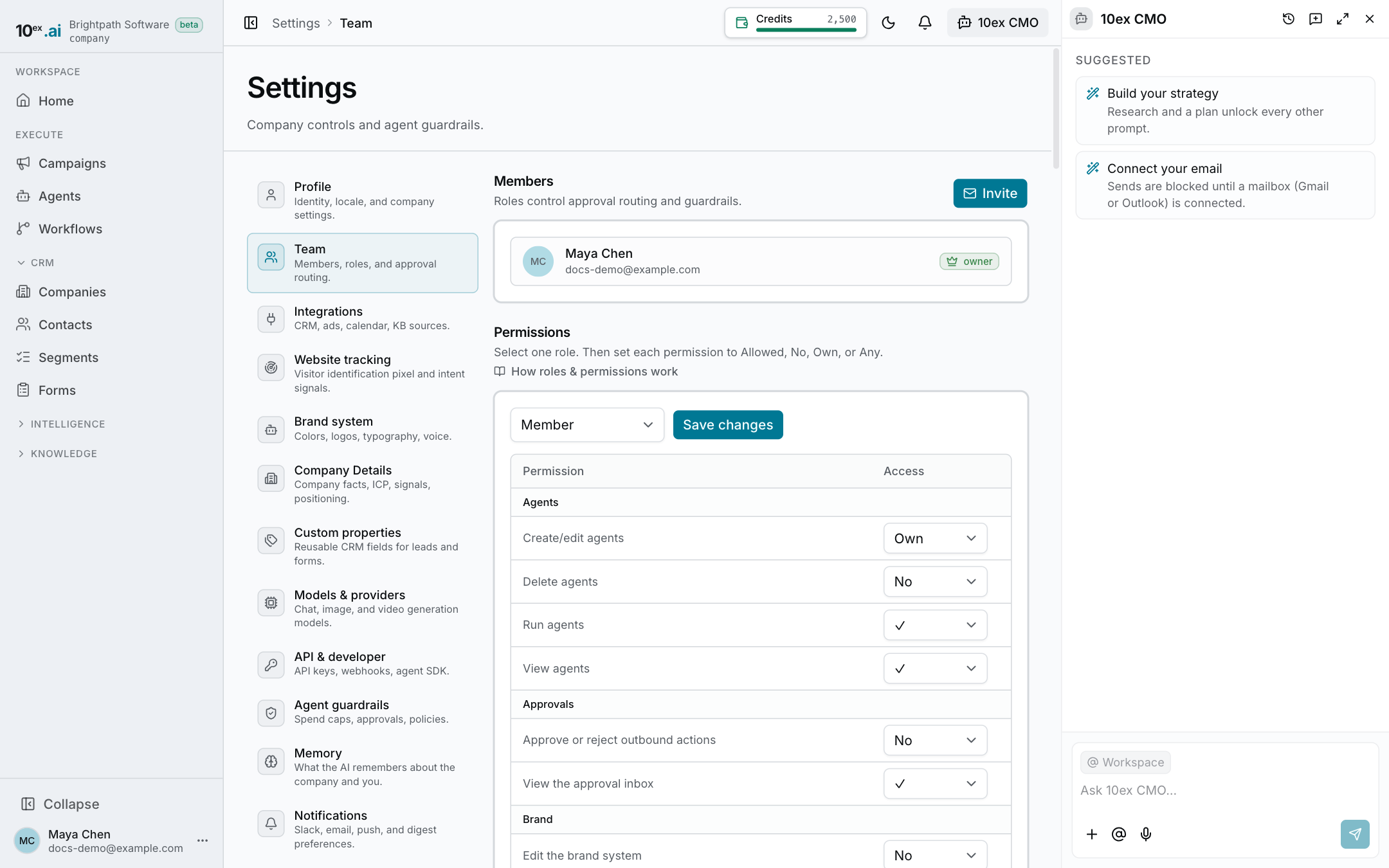
Settings → Team (https://app.10ex.ai/settings/team ) has three sections: Members, Invites and Permissions. Roles decide what people can do and who can approve agent actions.
For what each role means, see Roles and permissions. For a walkthrough, see Invite your team and set roles.
The five roles
From least to most access:
| Role | In short |
|---|---|
| Viewer | Reads everything shared, uses the CMO chat. Can’t create or connect anything. |
| Member | Day-to-day work: creates contacts, campaigns, content, agents and workflows, launches campaigns, connects their own accounts. |
| Manager | Everything a member can do, plus approving agent actions, inviting members and viewers, editing anyone’s work, exporting and publishing content. Sees billing. |
| Admin | Everything a manager can do, plus removing members and configuring the company: brand, company details, models, guardrails. |
| Owner | Everything. Only the owner can change the plan, edit role permissions and see every connection in the company. |
Invite a teammate
- Click Invite.
- Enter their Email and pick a Role.
- Click Send invite.
They get an email to join this company. You can only give roles below your own: a manager can invite members and viewers, an admin can invite up to manager.
Track or cancel invites
Invites lists everyone you’ve invited, with their role, when they were invited and whether the invite is pending, accepted or expired. Click Revoke on a pending invite to cancel it. The link in their email stops working right away.
Change a role or remove someone
Use the controls on a member’s row in Members.
- You can only change or remove someone whose role is below yours.
- Removing members needs an admin or the owner.
- The company must keep at least one admin, so the last admin can’t be demoted or removed.
Edit what a role can do
The Permissions section shows every permission for the role you select, grouped by area (Approvals, Campaigns, Integrations, Team and billing, and so on).
- Pick a role from the dropdown.
- Set each permission to:
- Allowed or No for on/off permissions.
- Own (only things they created) or Any (everyone’s) for permissions that have a scope.
- Click Save changes.
Only the owner can edit permissions. Everyone else sees the matrix read-only. The owner role always has full access and can’t be edited.
Sign-in and joining
- Invited people who are new to 10ex create an account from the email link. People who already have an account confirm with their password.
- People can sign in with email and password or with Google.
- Forgot your password? Use Forgot password? on the sign-in page to get a reset link by email.