Campaigns
A campaign is one send or one ad campaign on one channel: an email to a segment, a Google Search campaign, a Meta lead gen campaign, and so on. You build it with the CMO in chat or by hand, check it, then launch it.
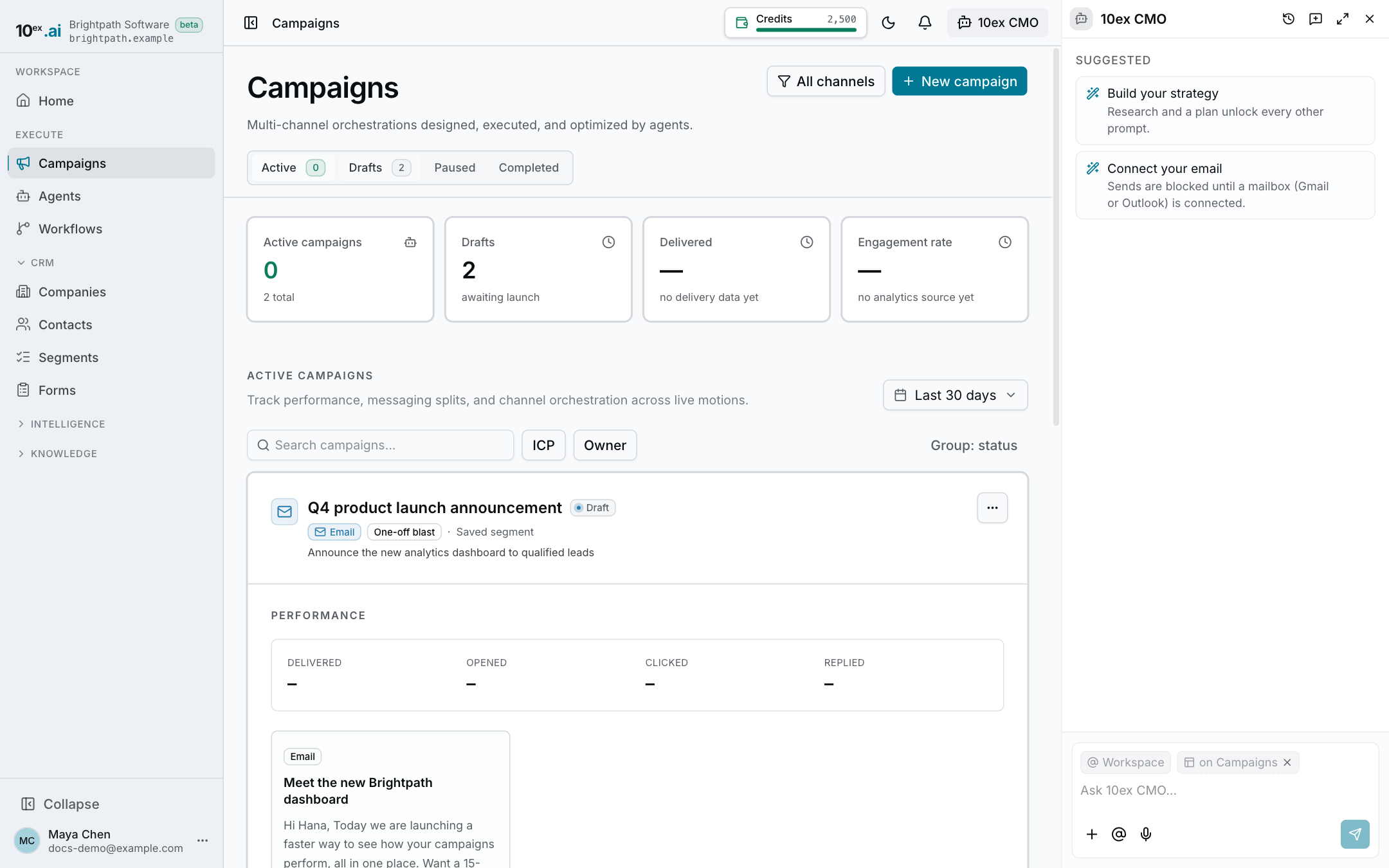
Open it from the sidebar: Execute → Campaigns, or go to app.10ex.ai/campaigns .
The Campaigns page
The page lists every campaign that isn’t archived.
- Tabs: Active, Drafts, Paused and Completed, each with a count.
- Numbers at the top: active campaigns, drafts, delivered and engagement rate.
- Filter by channel: the channel button in the header narrows the list to the channels you tick. Clear filter resets it.
- Search campaigns…: matches the name or the audience.
- Sync ads: pulls campaigns and metrics from every ad account you’ve connected. Campaigns you already run on Meta, Google or LinkedIn show up here too, so you can see and edit them in one place. The button shows when the last sync ran.
Each card has a ⋯ menu. What it offers depends on the campaign’s status:
| Status | Menu actions |
|---|---|
| Draft or scheduled | View, Launch, Archive |
| Live email campaign | View, Stop, Archive |
| Live ads campaign | View, Pause, Archive |
| Paused | View, Resume, Archive |
If Launch from the menu can’t go live (something is missing), 10ex opens the campaign so you can see what to fix.
Archiving hides a campaign from the list. It never deletes it.
Start a campaign
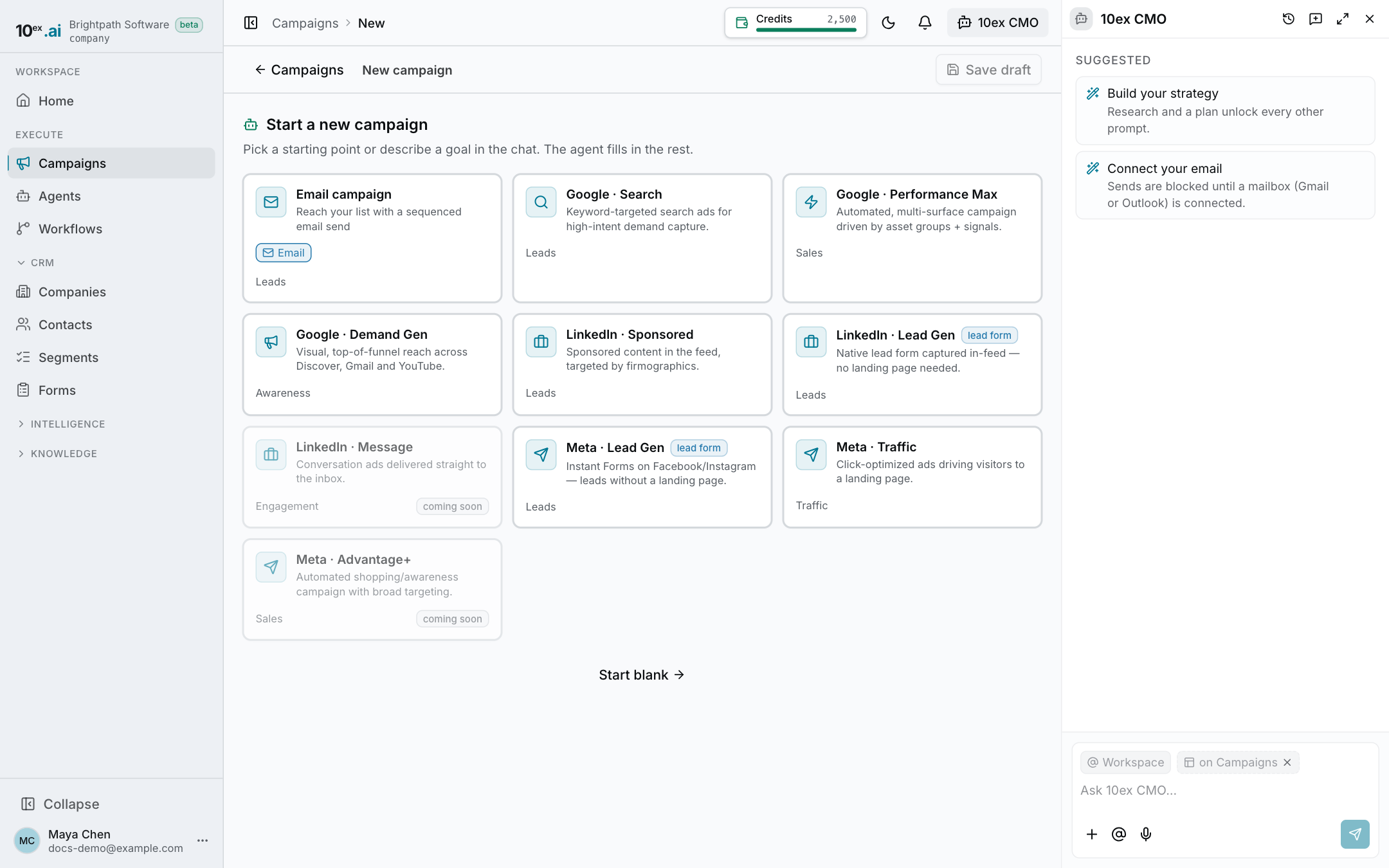
Click New campaign. The Start a new campaign screen gives you three ways in:
- Email campaign: opens the email form. See Email campaigns.
- An ad type card: Google · Search, Google · Performance Max, Google · Demand Gen, LinkedIn · Sponsored, LinkedIn · Lead Gen, LinkedIn · Message, Meta · Lead Gen, Meta · Traffic or Meta · Advantage+. Picking one fills the canvas with that ad type and starts the CMO on a plan. See Ads campaigns.
- Start blank: an empty canvas. Describe the goal in the chat and the CMO fills it in.
You can also skip this screen and ask in the CMO chat, for example “launch a LinkedIn lead gen campaign for our webinar”. The CMO builds the campaign and links you to it. See Work with the CMO chat.
A campaign runs on one channel. To cover email and ads for the same push, create one campaign for each.
The campaign page
Open any campaign to see four tabs:
- Overview: status, budget, connectors, the creative and a progress summary.
- Content: the copy, images and email body. Edit it here; on text you can use AI to rewrite a passage.
- Analytics: for email, delivered, opened, clicked, replied and bounced. For ads, spend, impressions, reach, clicks, leads or conversions, cost per click and cost per conversion. Numbers come from the mailbox and the ad platforms. A campaign that hasn’t sent anything shows no data rather than zeros.
- Settings: the launch snapshot (mailbox, sender, schedule, excluded segments) for email, and the channel settings for ads.
The header ⋯ menu has Duplicate and Delete.
Who can do what
| Action | Viewer | Member | Manager, Admin, Owner |
|---|---|---|---|
| See campaigns | Yes | Yes | Yes |
| Create and edit | No | Yes | Yes |
| Launch | No | Yes | Yes |
| Connect an ad account | No | No | Yes |
| Approve a held send | No | No | Yes |
| Delete or archive | No | No | Yes |
See Roles and permissions for the full list.
Related
- Email campaigns
- Ads campaigns
- Segments: who a campaign sends to
- Integrations: connect a mailbox or ad account
- Approvals and guardrails