Website tracking
Website tracking tells you which companies visit your site. It matches a visit to a company by its network, then adds the visit to that company in your CRM as an intent signal.
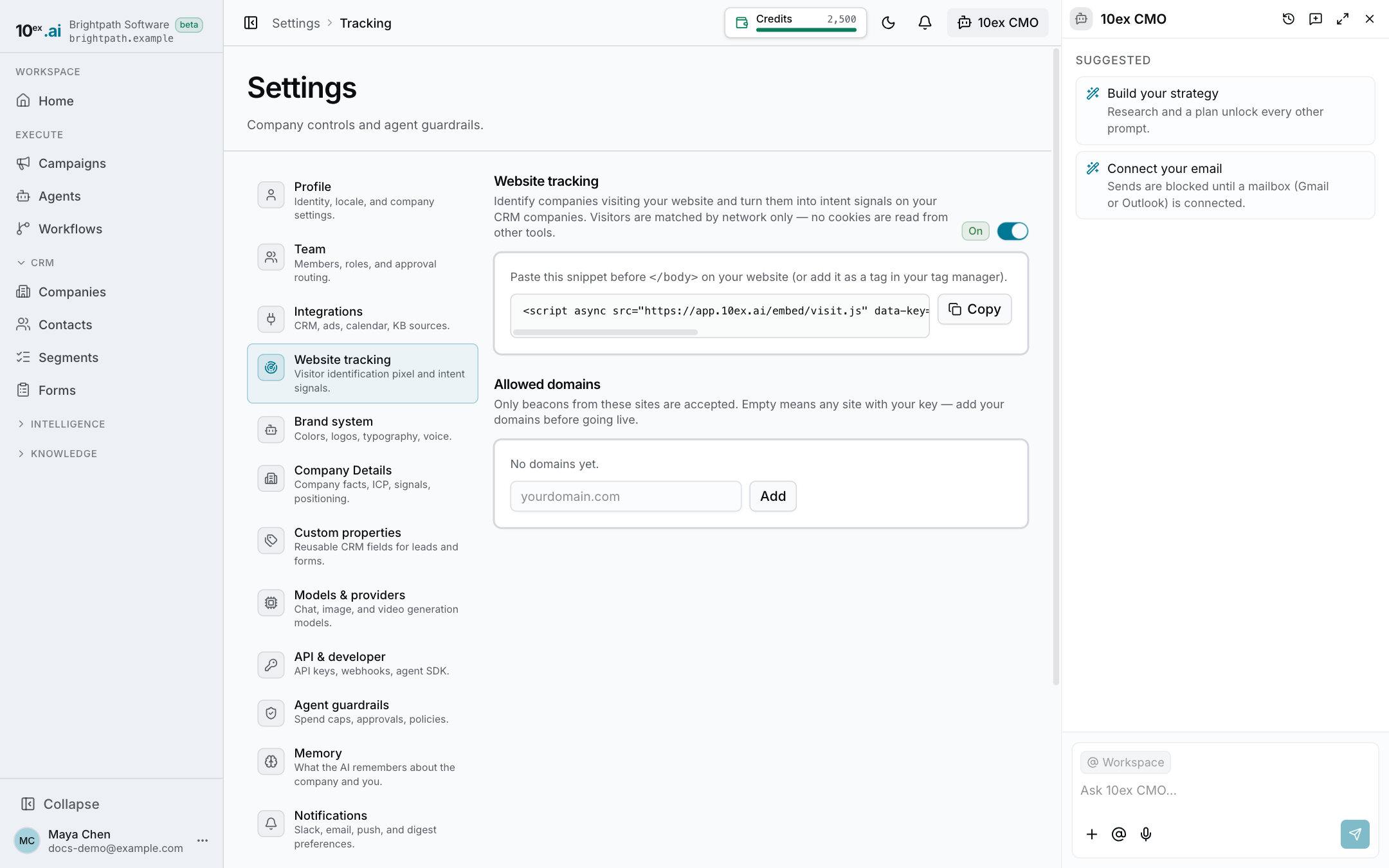
Settings → Website tracking (https://app.10ex.ai/settings/tracking ) has the on/off switch, your snippet and your allowed domains.
Set it up
- Open Settings → Website tracking.
- Make sure the switch beside Website tracking is On.
- Under Allowed domains, type your site (for example
yourdomain.com) and click Add. Do this before going live. - Click Copy next to the snippet and paste it before
</body>on your site, or add it as a tag in your tag manager.
For the full install steps, including tag managers and checking that it works, see Install the website tracker.
Allowed domains decides which sites can send visits. Only visits from those sites are accepted. If the list is empty, any site that has your key is accepted, so add your domains first. Click the x on a domain to remove it.
Turn the switch Off to stop recording without removing the snippet.
What you get
- A company that visits for the first time is created in your CRM, and the workspace owner gets a “New company on your website” alert in the app and by email.
- Each company shows its visits under Intent signals and in its Activity feed. See Companies.
- Visits count toward a company’s hotness, which is how the Companies list ranks hot accounts. See Intent signals and hot accounts.
What it does not do
- It finds companies, not individual people.
- It only records visits from business and education networks. Home internet, mobile and hosting traffic is ignored, and so are visits it can’t match to a company.
- It stores no IP addresses. Visitors are matched by network only, and 10ex reads no cookies from other tools.
Because the tracker records visits to your site, tell visitors about it in your privacy policy.
Who can use it
Everyone who can see forms can open the page. See Roles and permissions.