Automate a task with a workflow
A workflow is a no-code automation: when something happens, do something. In this tutorial you set one up so every new lead gets a welcome email automatically. It takes about 10 minutes.
What you’ll learn
- How to start from a template
- How triggers, steps and the config drawer work
- How to test a workflow before switching it live
Before you start: a connected Gmail or Outlook mailbox (Settings → Integrations), and a role of member or above.
1. Install the template
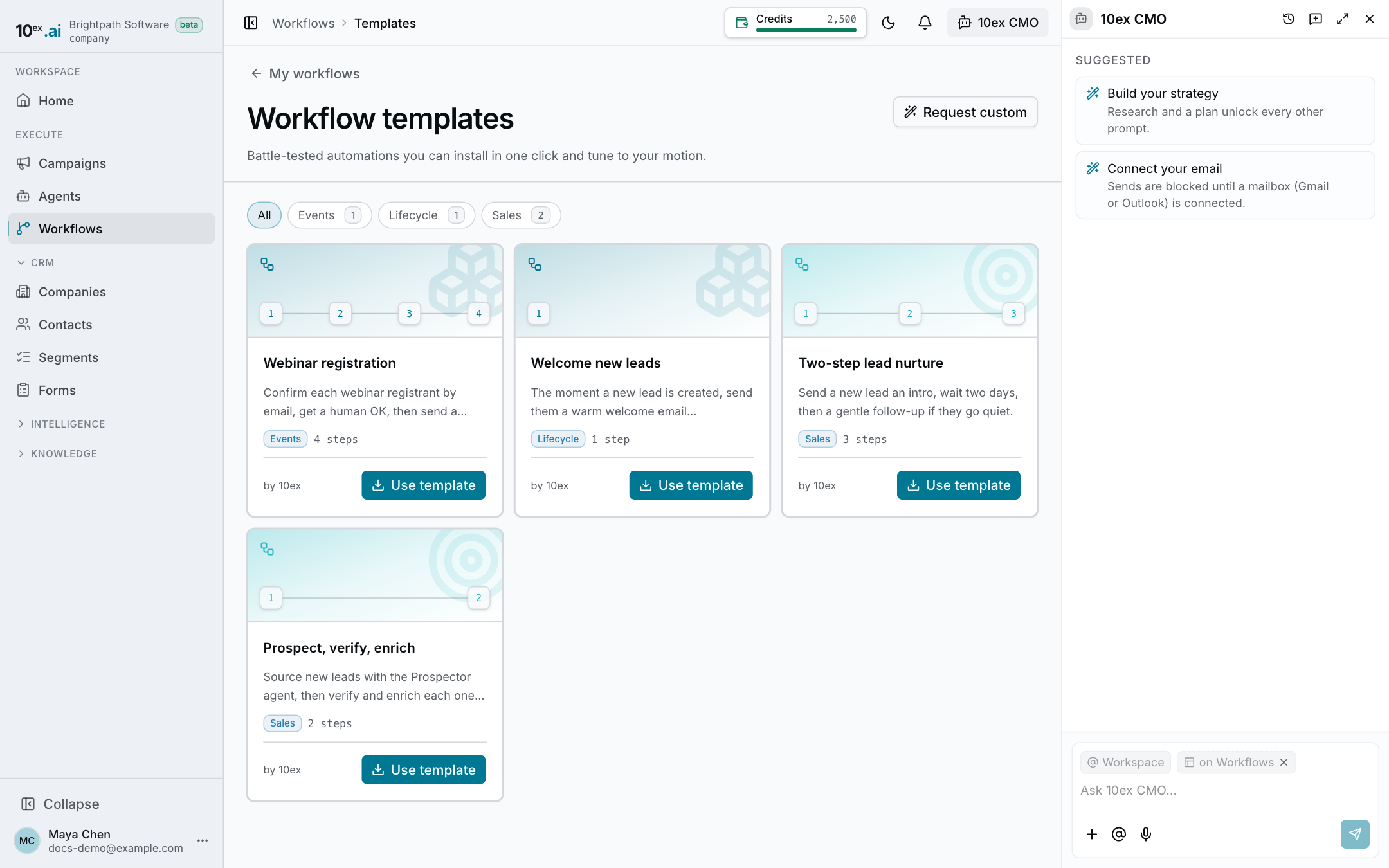
- Go to Workflows and click Templates.
- Find Welcome new leads (category: Lifecycle) and click Use template.
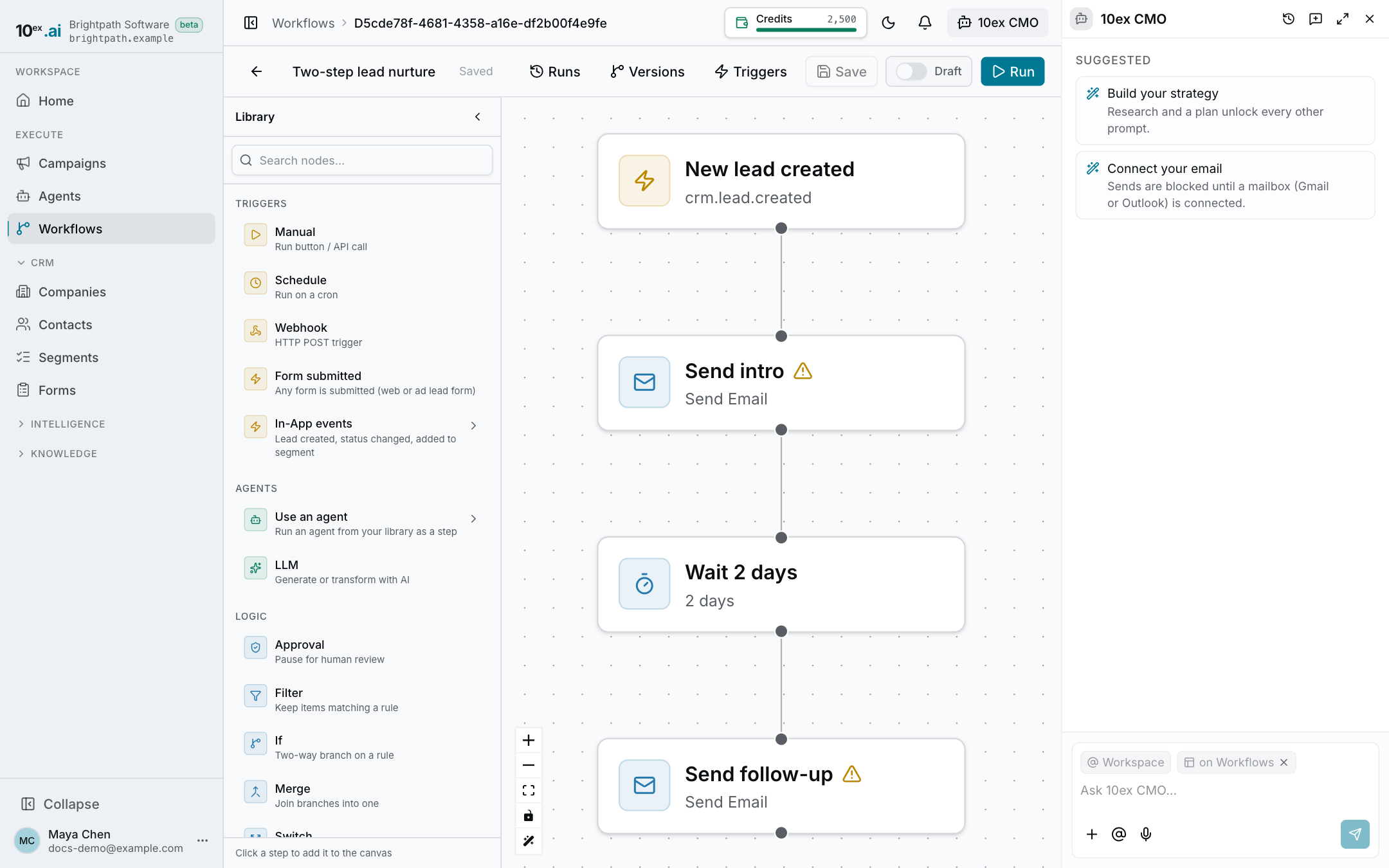
The workflow opens in the editor as a draft. Nothing runs until you switch it live.
2. Read the canvas
The canvas shows two steps, top to bottom:
- New lead created: the trigger. It fires every time a lead is added to your CRM.
- Send welcome: a Send email step.
Click a step to open its config drawer. The drawer has three tabs: Parameters (what the step does), Settings, and Data (the input it receives and the output it produced in a test).
3. Narrow the trigger (optional)
Open New lead created. You can filter it by Source and Status, for example only leads from a web form. Leave the filters empty to welcome every new lead.
4. Set up the email
Open Send welcome:
- Under Send from, pick the inbox to send from. If you leave it empty, the company’s default mailbox is used.
- Edit the subject and body. You can use values from the trigger, such as the lead’s first name. The drawer lists the fields available from earlier steps.
5. Test it
- Click Save.
- Click Run in the header to start a test run.
Each step lights up as it runs: done, running, failed or waiting. Lines between steps turn green and show how many items passed through. Click Runs to see past runs and their status.
6. Switch it live
Flip the Live/Draft switch in the header (or click Activate workflow). Activating saves a version you can restore later from Versions. From now on, every new lead triggers the workflow.
To stop it, switch it back. Pausing stops the trigger from firing.
The company owner gets an email each time a run starts, with the workflow name and the lead it ran for.
Make it safer with an approval step
If you’d rather check each email before it sends, add an Approval step before Send welcome. The run pauses there until someone approves or rejects it. See Approval steps in workflows.
Next steps
- Explore every trigger and step type in the Workflows guide.
- Start a workflow from another system with a webhook trigger.
- Turn an agent run you like into a recurring workflow with Make this recurring on its result card in the chat.