Install the website tracker
The tracker is a small script that reports page views to your workspace. 10ex matches each visit to a company from the visitor’s network, then shows it as an intent signal on that company. It does not identify people.
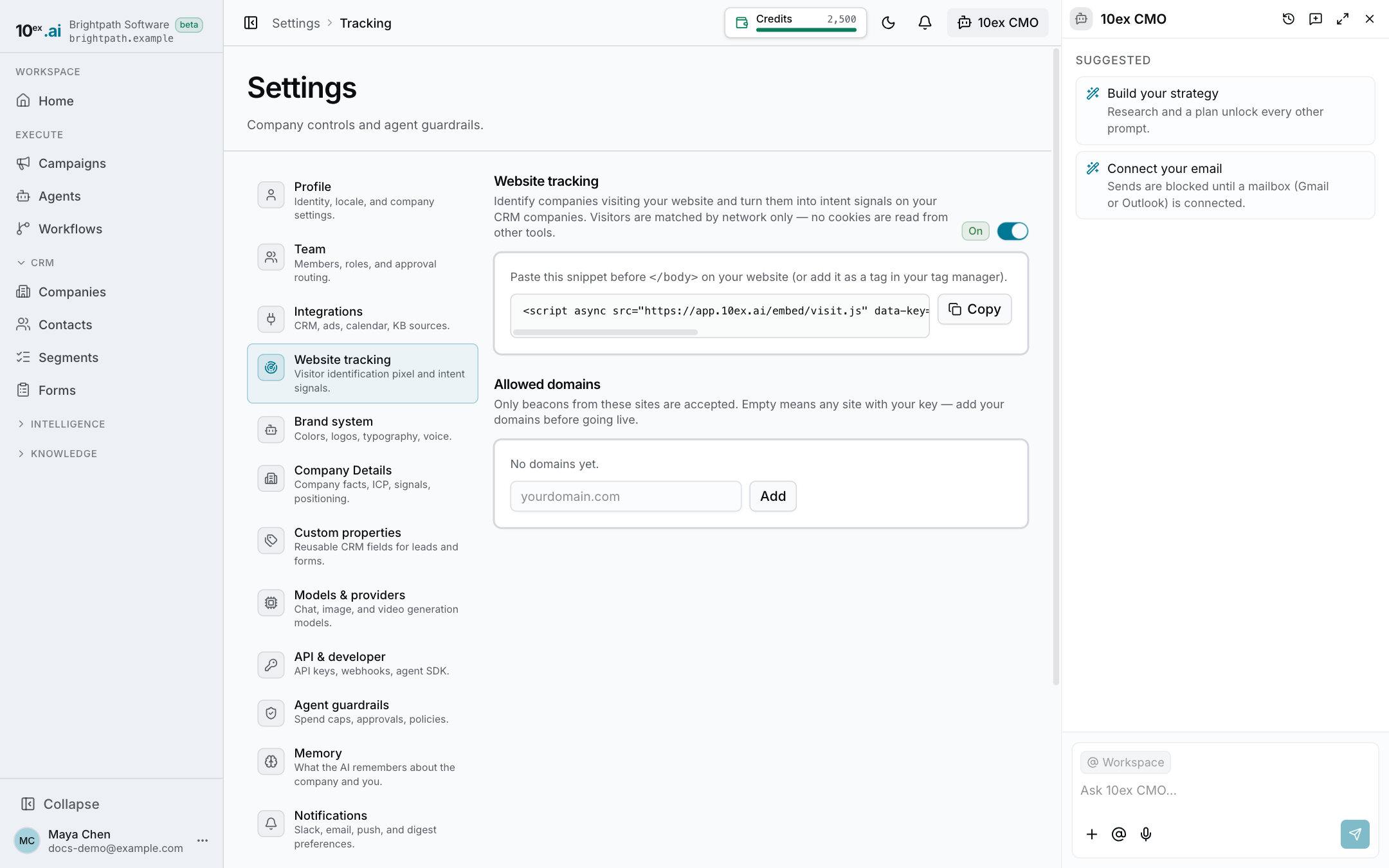
Turn it on and copy your snippet from Settings → Website tracking (see the Website tracking guide).
Add the snippet
Paste the snippet before </body> on every page you want to track, or add it as a tag in your tag manager:
<script async src="https://app.10ex.ai/embed/visit.js"
        data-key="PIXEL_KEY" data-api="https://api.10ex.ai"></script>
Copy the real tag from the app: it has your own data-key. Both data-key and data-api are required. Without either, the script does nothing.
Single-page apps work without extra code. The script reports a new page view whenever the URL changes.
What it sends
For each page view: the page URL, the page title, the referring site (only when it’s another site), UTM parameters, and a timestamp. Views are batched and sent about two seconds later, and again when the visitor leaves the tab.
It also sends two random ids that the script stores in the visitor’s own browser (localStorage): a visitor id and a session id. A session ends after 30 minutes without activity.
What it does not do
- It reads no cookies from other tools.
- It does not store the visitor’s IP address. The IP is used once to find the company and is then dropped.
- It stays silent for browsers that send Global Privacy Control, and for automated browsers.
- It never shows an error on your page. If something fails, the visit is skipped.
Because it sets ids in the visitor’s browser and looks up their network, mention it in your privacy policy.
Lock it to your domains
Until you add a domain under Allowed domains, any site that copies your snippet can send visits into your workspace. Add your domains in Settings → Website tracking, then check the tracker on your live site.
Matching is by host name and ignores a leading www., so example.com covers www.example.com. Other subdomains need their own entry.
What you get
- The visiting company appears in Companies, or is matched to one you already have.
- The company’s page shows an Intent signals panel and an Activity feed with its visits.
- The first time a new company shows up, the workspace owner gets a New company on your website email.
When nothing shows up
The tracker never reports problems on the page, so check these:
| What you see | Why |
|---|---|
No request to /track/.../events in the network tab | The snippet is missing data-key or data-api, or your browser sends Global Privacy Control |
The request returns {"recorded": false} | The key is wrong, tracking is switched off, your domain isn’t in Allowed domains, or the visit came from a network that can’t be tied to a company |
| Visits arrive but no company appears | Visits from home or mobile connections usually can’t be tied to a company. Test from an office network |