Segments
A segment is a group of contacts or companies. Email campaigns send to a segment, ad campaigns can build an audience from one, and agents can run once per member. Segments live at /lists in the app.
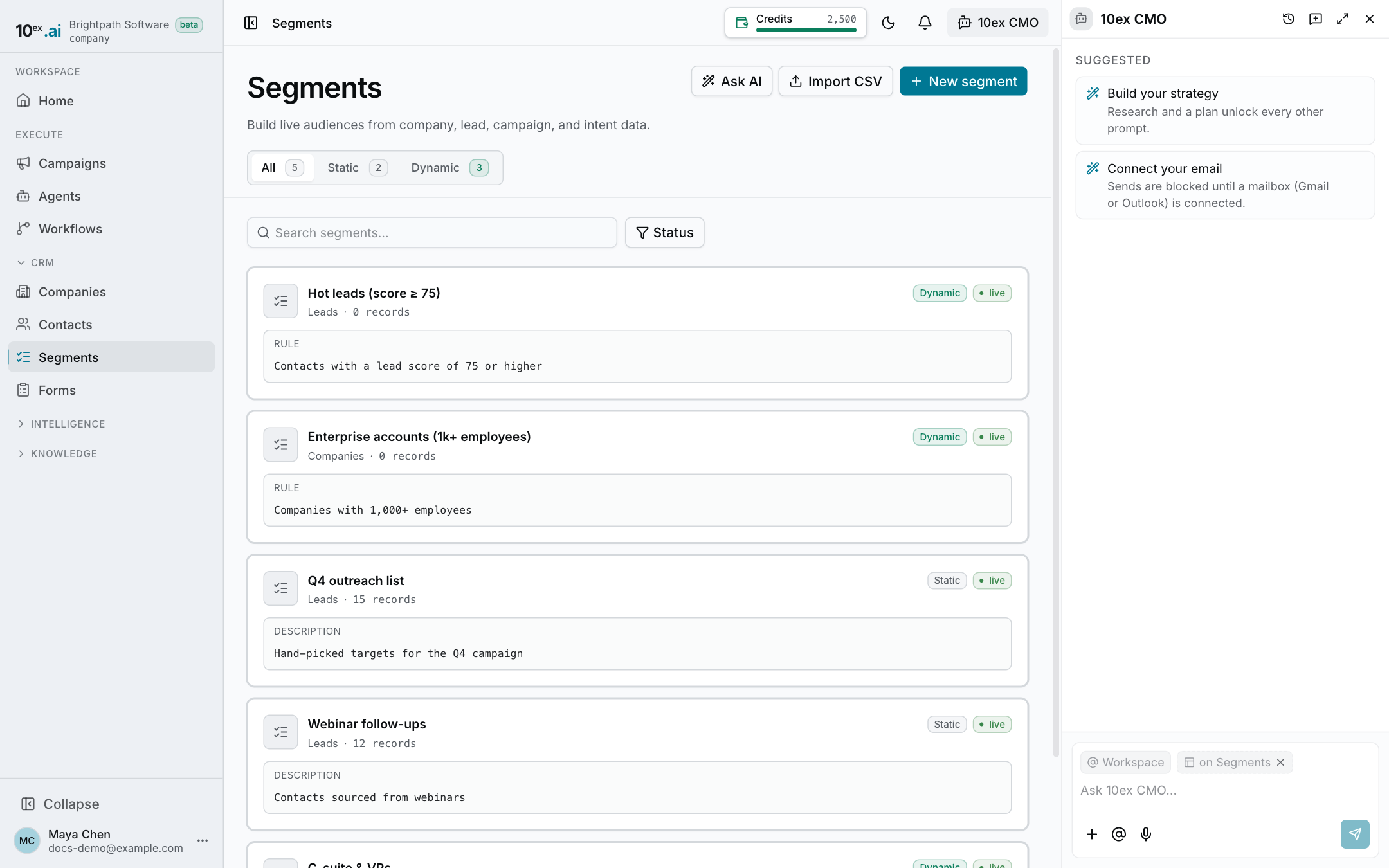
Two kinds of segment
| Type | How members get in | Use it for |
|---|---|---|
| Static list | You add them by hand or import a CSV. Or set rules once and save the matches as a fixed snapshot. | An event attendee list, a one-time send |
| Dynamic segment | Rules. Members move in and out on their own as their data changes. | ”VPs of Marketing at fintech companies”, “Hot contacts in the US” |
The Segments page has All, Static, and Dynamic tabs, a search box, and a status filter. Each row shows the segment’s type, status, rule, and member count.
Create a segment
- Click New segment.
- Choose Static list or Dynamic segment.
- Pick whether the segment holds Leads (contacts) or Companies.
- Build the rules (see below), or skip them for an empty static list.
- Check the Live preview on the right. It shows the match count and a sample of the matching records.
- Give it a Name, and optionally a description, owner, and destination under Details.
- Click Create segment.
Describe it in plain English
At the top of the builder, type what you want, for example “directors and VPs at SaaS companies in Europe who opened an email this month”. 10ex turns it into rules you can check and edit. Press ⌘ Enter to generate. You can also click Ask AI on the Segments page to start this way.
Build rules by hand
Each rule is a property, an operator, and a value, for example Job title contains “Director”.
- Properties are grouped (Identity, Firmographic, Engagement, Score, Pipeline, Owner) and searchable. Recently used ones are at the top.
- Operators change with the property type: text, number, list, date (“in the last 30 days”), or yes/no. “Between” and “is any of” are there too.
- Combine rules in a group with AND or OR, and add more groups for “this AND (that OR that)”.
Import a CSV
Click Import CSV on the Segments page to create a new list from a file.
- Upload: drop the CSV and say whether it has a header row.
- Map columns: 10ex matches columns to fields by their header names. Check each one, or set it to Don’t import. You can map over 30 fields, including name, email, phone, job title, company, industry, lead status, lifecycle stage, source, LinkedIn URL, and dates like last contacted.
- Confirm: name the list, choose whether to skip invalid rows, and start the import.
A mapped Company column links each contact to a company, creating the company if it’s new. Contacts already in your CRM are matched by email.
Work with a segment
Click a segment to open it. You’ll see its type and status, the rule (for dynamic segments), and its Members.
- Edit the name and description.
- Star it as a favorite.
- Remove a member from a static list with Remove from segment.
- Delete the segment. This doesn’t delete the contacts.
Run an agent on every member
On a contact segment, click Run an agent. Pick the agent and you’ll see the number of rows and the credit cost before you click Start. The run opens in the agent’s room. See Agents.
Company segments can’t be used as a source for agent runs yet.
Ask the CMO about a member
Click a member row to select it. The CMO chat shows it as a chip, and your next message is about exactly that record. See CMO chat.