Content library
Content is one library for everything 10ex writes or generates: blogs, emails, images, videos, pages and ad copy. Agents and campaigns save their output here, and you edit, export or publish it from the same place.
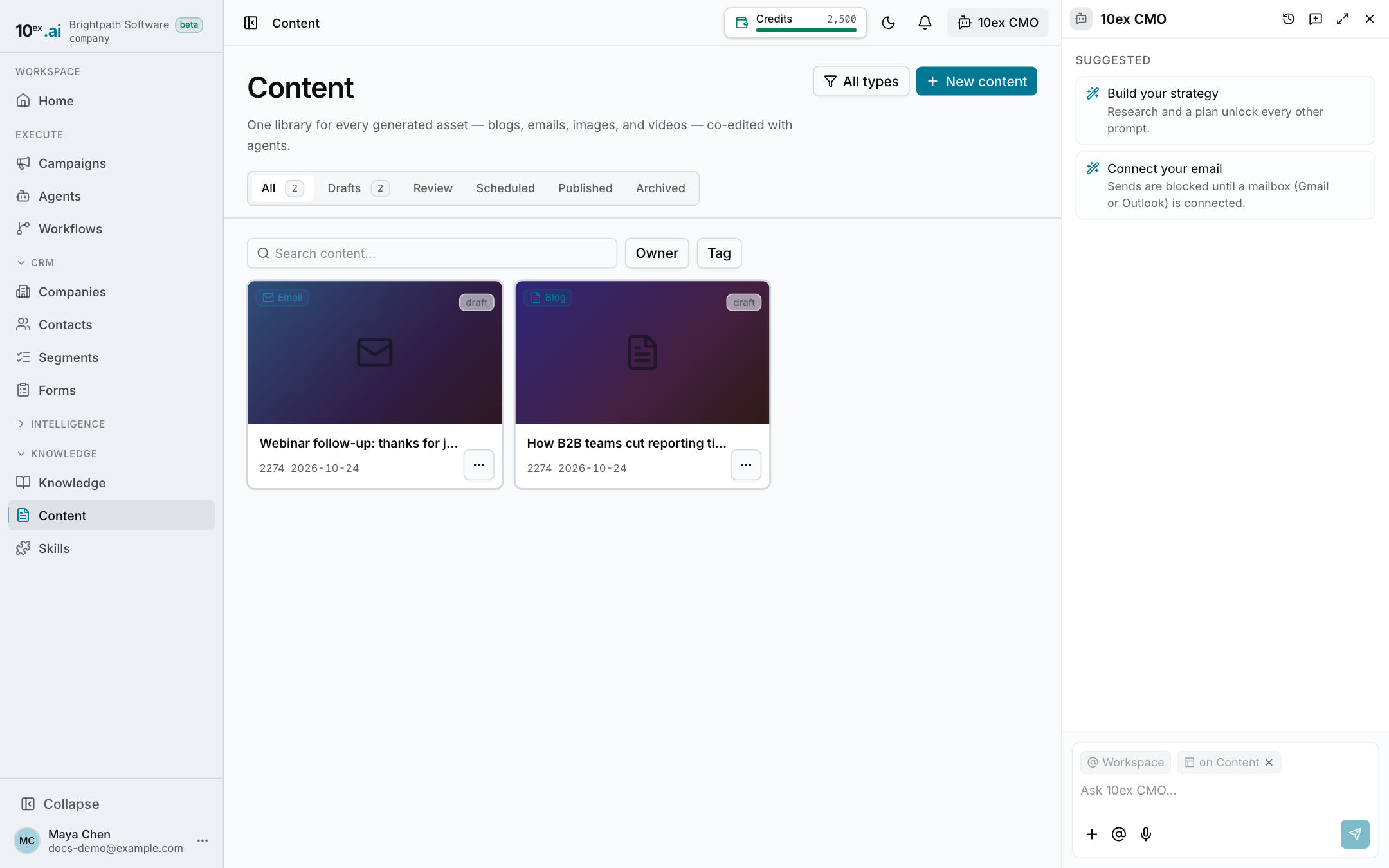
Open it from the sidebar: Content (https://app.10ex.ai/content ).
Find a piece
Each card shows a thumbnail (for images and videos), the type, the status and where it came from, for example From campaign or From agent.
Narrow the list with:
- Filter by type: blog, email, image, video, page, ad copy.
- Status tabs with counts: All, Drafts, Review, Scheduled, Published, Archived.
- Owner and Tag filters.
- Search content… for a title.
Click a card to open it. The ⋯ menu on a card has Open, Duplicate, Archive and, if your role allows it, Delete.
Create content
There are two ways to get new content:
- Ask for it. Run an agent such as the Blog Agent, Image Generator or Video Generator (Agents), or ask the CMO in chat (Work with the CMO chat). The result lands in the library.
- Start a draft. Click New content, pick a type (blog, landing page, image or video) and work with the CMO on it. The draft is saved to the library, and you finish it in the editor.
Edit a blog, email or page
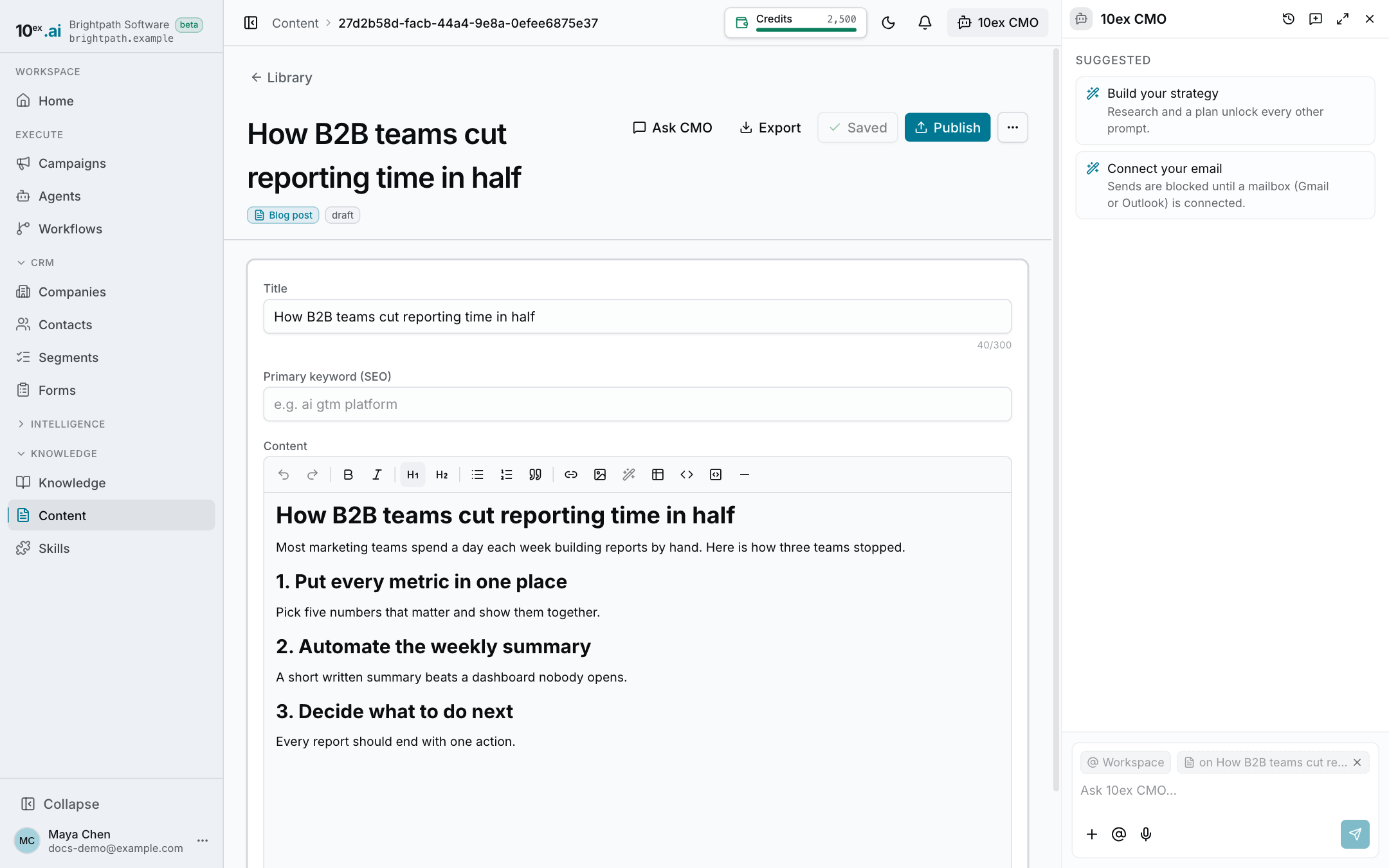
Opening a blog, email or page gives you a document editor:
- A Title (a Subject for emails) and, for blogs, a Primary keyword (SEO).
- A formatting toolbar that stays visible as you scroll: headings, lists, quotes, links, code, dividers and images.
- Edit with AI: select text and pick Rewrite, Shorten, Expand or Fix grammar, or type your own instruction. The selection is rewritten in place.
- Images: the toolbar’s image button can generate an image from a prompt, upload one from your device (PNG, JPG, WebP or GIF, up to 10 MB) or insert one by URL.
Press ⌘S (Ctrl+S on Windows) or click Save. The button shows Saved when everything is saved, and the browser warns you before closing a tab with unsaved edits.
If an agent wrote the piece as a full HTML page, you see the page itself in a safe preview with a Preview / Code toggle instead of the editor.
Ask CMO opens the chat on this piece so you can ask for a revision, a new image or a different angle.
Published pieces are read-only.
Images and videos
Images and videos open in a viewer or player with a download button. To change which model generates them, see Settings → Models & providers (Settings overview).
Export
The Export menu on a piece:
- Copy as HTML or Copy as Markdown
- Download .md or Download .html
Publish to your website
You can publish blogs straight to Webflow, Sanity or WordPress.
- Connect your CMS first in Settings → Integrations (Integrations).
- Open the piece and click Publish.
- Pick the target. A target you haven’t connected shows Connect and links to Settings.
- Publishing waits for approval. Approve it under Waiting on you on Home or from the approval email. See Approvals and guardrails.
- Once it’s live, View live post opens the published page.
Format rules:
- Webflow and WordPress take HTML. A piece written in Markdown is refused. Ask the Blog Agent to rewrite it as HTML.
- Sanity takes Markdown. An HTML piece is refused.
- A piece with an empty body can’t be published.
Permissions
| Action | Who |
|---|---|
| View the library | Everyone |
| Create and edit your own pieces | Member and above |
| Edit anyone’s pieces, publish, delete | Manager and above |