Email campaigns
An email campaign sends one email, or an email with follow-ups, from your own Gmail or Outlook mailbox to a segment or a single contact.
Before you start: connect a mailbox in Settings → Integrations (see Integrations) and have a segment ready (see Segments). You can draft without either, but you can’t launch.
Create the campaign
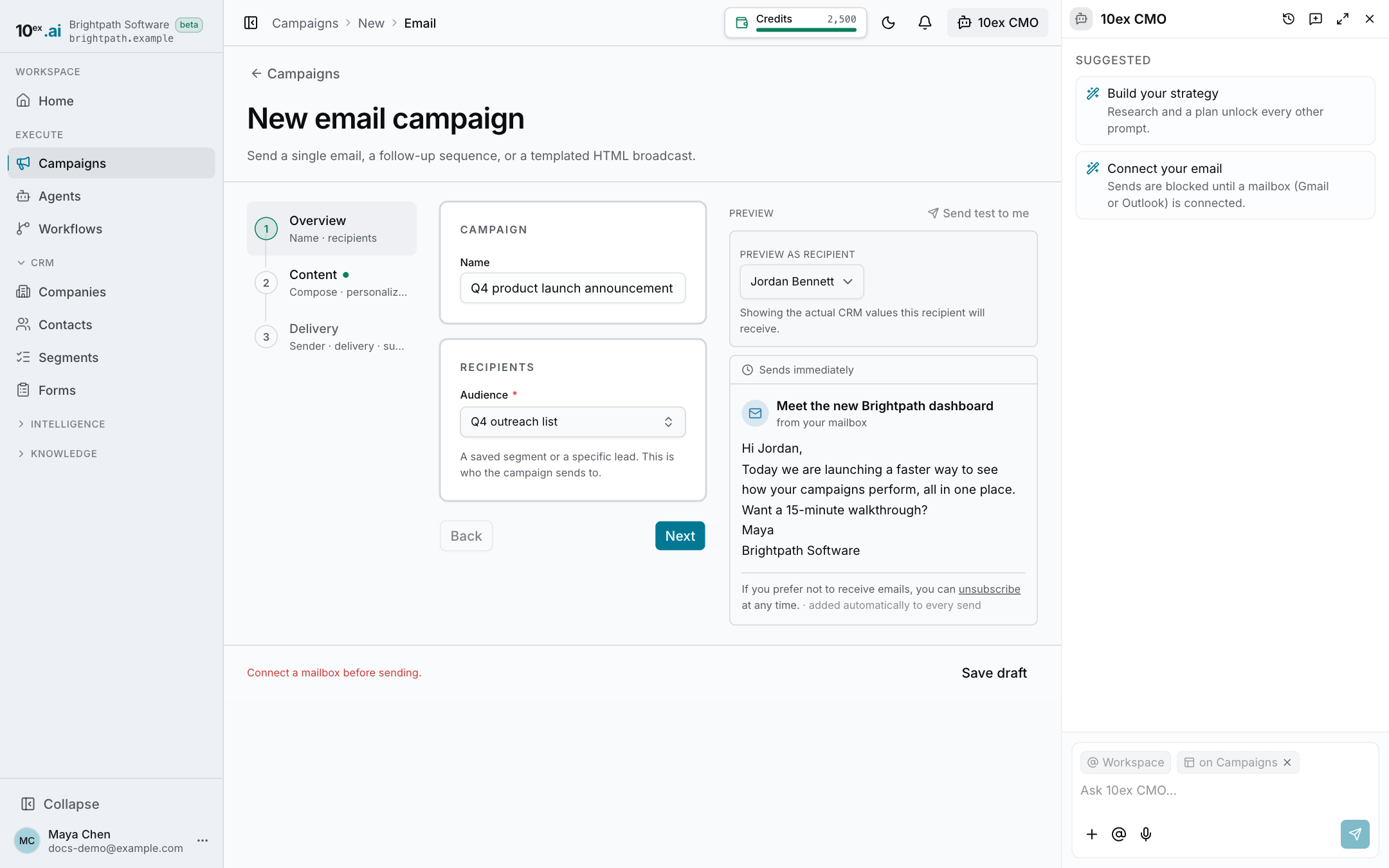
Go to Campaigns → New campaign → Email campaign. The New email campaign form opens with four steps down the left:
- Overview: name and recipients
- Content: compose, personalize, follow-ups
- Delivery: sender, timing, suppression
- Review & launch: test, review, send
The form saves as you go. You can leave and come back from the Drafts tab on the Campaigns page.
1. Overview
- Campaign: give it a name.
- Recipients: pick a saved segment or a specific contact. Once you pick, 10ex tells you how many people will actually receive it and why the rest are skipped (for example unsubscribed or no email).
2. Content
Compose
Write a subject and a body. You have three ways to write the body:
- Type it. Select text to get AI edits, or use the toolbar to add an image. You can generate an image from a description or upload one.
- Draft with AI. Describe what the email is about, who it’s for and what they should do. Click Draft email and 10ex writes the subject and body in your brand voice.
- Templates. Start from Newsletter, Product update, Announcement, Plain / personal or Event invite. Templates use your brand color and logo from your company profile. Only the middle of the email is editable. The header and footer stay fixed.
An email with custom HTML opens in a source editor instead. You can still use Apply AI edit on a selection there.
Merge tags
Use {{tag}} to fill in each recipient’s details. The tags 10ex knows are:
{{first_name}} · {{last_name}} · {{company_name}} · {{job_title}} · {{email}} · {{city}} · {{country}}
- A tag 10ex doesn’t know blocks the launch until you remove it.
- If a recipient is missing the value for a tag you used, that recipient is skipped instead of getting an email with a gap.
Personalization
Off (Static) means everyone gets the same approved email, with merge tags filled in.
On (Personalized) means 10ex researches each recipient and writes a separate email for each one, using your body as the brief. Add your rules in the box, for example “reference a recent milestone, keep it under 120 words, one clear ask”. You review the drafts before anything sends (see step 4).
Follow-ups
Add follow-up steps under Follow-ups. Each one has its own body and a send day. Each follow-up must have content and must send on a later day than the step before it. You can reorder or remove steps.
Signature
Turn on Add my signature to every send and type your signature once.
3. Delivery
- Sending identity: choose the Sending mailbox from Your mailboxes or Company-wide mailboxes. If you pick nothing, the company’s default mailbox sends. You can also set a From name and a Reply-to address. Left empty, they use the mailbox’s own settings.
- Delivery: Send now sends at launch. Switch to Scheduled and pick a date and time to send later.
- Suppression: unsubscribed and hard-bounced contacts are always skipped. Add segments here to exclude them from this campaign too.
Every email gets a one-click unsubscribe link and your company address automatically.
4. Review & launch
- Pick a recipient to preview the email as they’ll see it.
- Click Send test to me to get a copy in your own inbox.
- Launch:
- Static campaign: click Launch campaign (or Schedule if you set a time).
- Personalized campaign: click Generate & review first. 10ex drafts an email for each recipient and opens the review. Read and edit the drafts (or click Regenerate drafts), then click Launch campaign.
The launch button stays off until the campaign has recipients, a subject and a body, and every draft has finished generating.
After launch
- The campaign’s Analytics tab shows delivered, opened, clicked, replied and bounced, with rates.
- Follow-ups send on their days. Anyone who unsubscribes or bounces drops out of later steps.
- To end it early, open the ⋯ menu on the Campaigns page and choose Stop. Stop also cancels follow-ups that haven’t sent. Email campaigns can’t be paused.
Sending limits
To protect your sender reputation, 10ex sends at most 1,000 emails per company per day across all campaigns. A larger audience goes out in batches over the following days automatically. If other campaigns already used today’s limit, the rest of your send moves to the next day.
Troubleshooting
| You see | Fix |
|---|---|
| ”No mailbox connected — connect one to send.” | Click Connect Gmail or connect Outlook, or connect one in Settings → Integrations. |
| ”Every selected recipient is suppressed or excluded.” | Pick a different segment, or remove an exclusion segment. |
| ”Remove unknown merge tags before generating drafts.” | Fix the spelling of the tag, or remove it. Only the tags listed above work. |
| ”Every follow-up needs content and a later send day.” | Fill in each follow-up and make each send day later than the one before. |