Integrations
Settings → Integrations (https://app.10ex.ai/settings/integrations ) is where you connect the accounts agents work through: the mailbox they send from, the ad accounts they manage, the CMS they publish to. For how connections work in general, see Connectors.
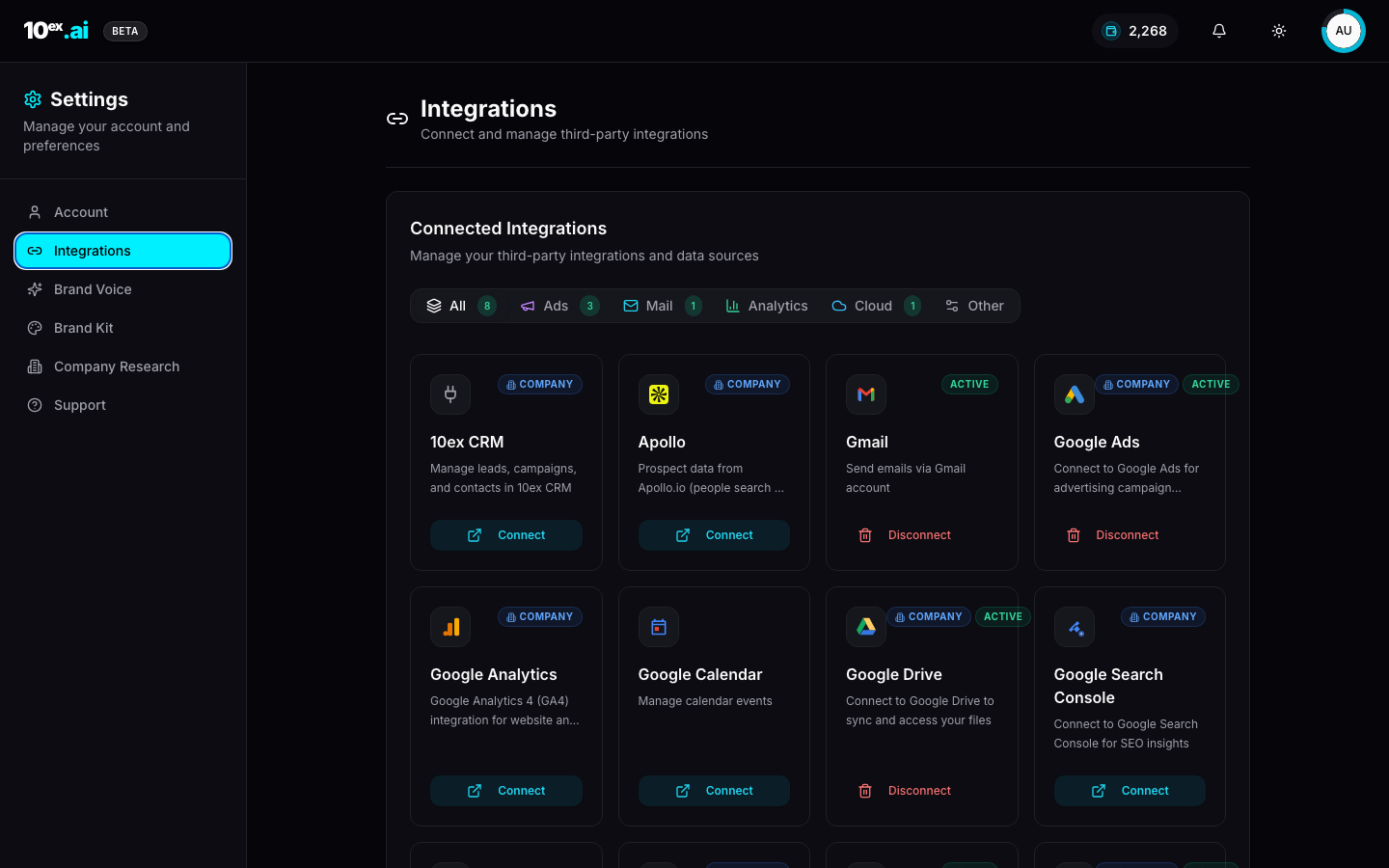
What you can connect
| Section | Connectors | How you connect |
|---|---|---|
| Gmail, Outlook | Sign in with the mailbox. Emails send as you. | |
| Ads | Google Ads, Meta Ads, LinkedIn Ads | Sign in with the ad platform, then pick the ad account. |
| Analytics | Google Analytics | Sign in with Google. |
| Knowledge | Google Drive, SharePoint | Sign in, then pick files on Knowledge → Sources (Knowledge). |
| Content | Webflow, Sanity, WordPress | Paste an API token (Webflow, Sanity) or an Application Password (WordPress). |
| Custom MCP servers | Any MCP server you run or trust | Add its URL. |
Some data sources, such as the contact database the Prospector uses, are provided by 10ex and need no setup.
Connect an account
- Find the connector and click Connect.
- For sign-in connectors, a window opens with the provider’s consent screen. Approve it and you’re returned to Settings.
- For CMS connectors, fill in the form. 10ex checks the credentials live before saving. A wrong token is rejected and nothing is stored.
A connected card shows a green dot. If a connection breaks, for example because the password changed or access was removed, the card shows Reconnect needed and a Reconnect button.
Viewers can’t connect accounts.
Yours or the company’s
A connection belongs to whoever connected it. By default it’s Personal.
- To let the whole team (and their agents) use it, open the card’s ⋯ menu, choose Connections, and turn on Use company-wide. This needs a manager or above.
- A connector someone else shared shows Connected company-wide · add your own. You can use it, but only its owner can change or remove it.
- The owner sees a Company-wide connections section listing everything shared with the company.
Email: Gmail and Outlook
Connect the mailbox you want campaigns and the email agents to send from. Emails go out as you.
- Add inbox in the card’s ⋯ menu connects another mailbox.
- Connections in the same menu lists your mailboxes. For a mailbox shared company-wide, Make default sets the company’s sending address. A personal mailbox can’t be the company default.
See Email campaigns.
Ads: Google, Meta and LinkedIn
- Click Connect and sign in with the ad platform.
- If you have access to several ad accounts (for example an agency or a Google manager account), a picker opens. Choose the account campaigns should launch and bill in. You can also tick other accounts to keep syncing their results.
- The card shows the account’s name and when it last synced.
The card’s ⋯ menu has Sync now, Add account and Connections. In Connections, each connection has its own account picker: change the launch account, choose what syncs, or remove an account.
For Meta, share your Facebook Page(s) on the consent screen. Without a Page, lead forms can’t sync. See Ads campaigns and Forms.
Content: Webflow, Sanity and WordPress
- Webflow: paste an API token. The form also asks for the collection field that holds the featured image.
- Sanity: paste an API token.
- WordPress (self-hosted): enter the site address, your username and an Application Password. Create one in WordPress under Users → Profile → Application Passwords.
Then publish from the content library. See Content library.
Custom MCP servers
Add an MCP server to give agents its tools.
- Under Custom MCP servers, find Add an MCP server.
- Enter a name and its
https://URL, and pick how it signs in: OAuth, API token or None. - Click Add server. For OAuth, you’re sent to the provider to approve, then back to Settings.
Installed servers show Connected, Needs reconnect or Pending. Every action on a custom MCP server asks for approval before it runs.
Disconnect
Open the card’s ⋯ menu, choose Connections, and click the trash icon on the connection. To confirm, type the connector’s name. Disconnecting revokes 10ex’s access at the provider. Anything that relied on it, such as scheduled sends or ad syncs, stops until you reconnect.
For WordPress, also delete the Application Password in WordPress under Users → Profile → Application Passwords.
Permissions
| Action | Who |
|---|---|
| See integrations | Everyone |
| Connect, reconnect, disconnect your own accounts | Member and above |
| Share a connection company-wide | Manager and above |
| See every connection in the company | Owner |