Agents
An agent is a specialist that does one kind of job for you, such as finding leads, writing a blog post or running your Meta ads account. You hire one, tell it what to do, and it works with your company data and your connected accounts.
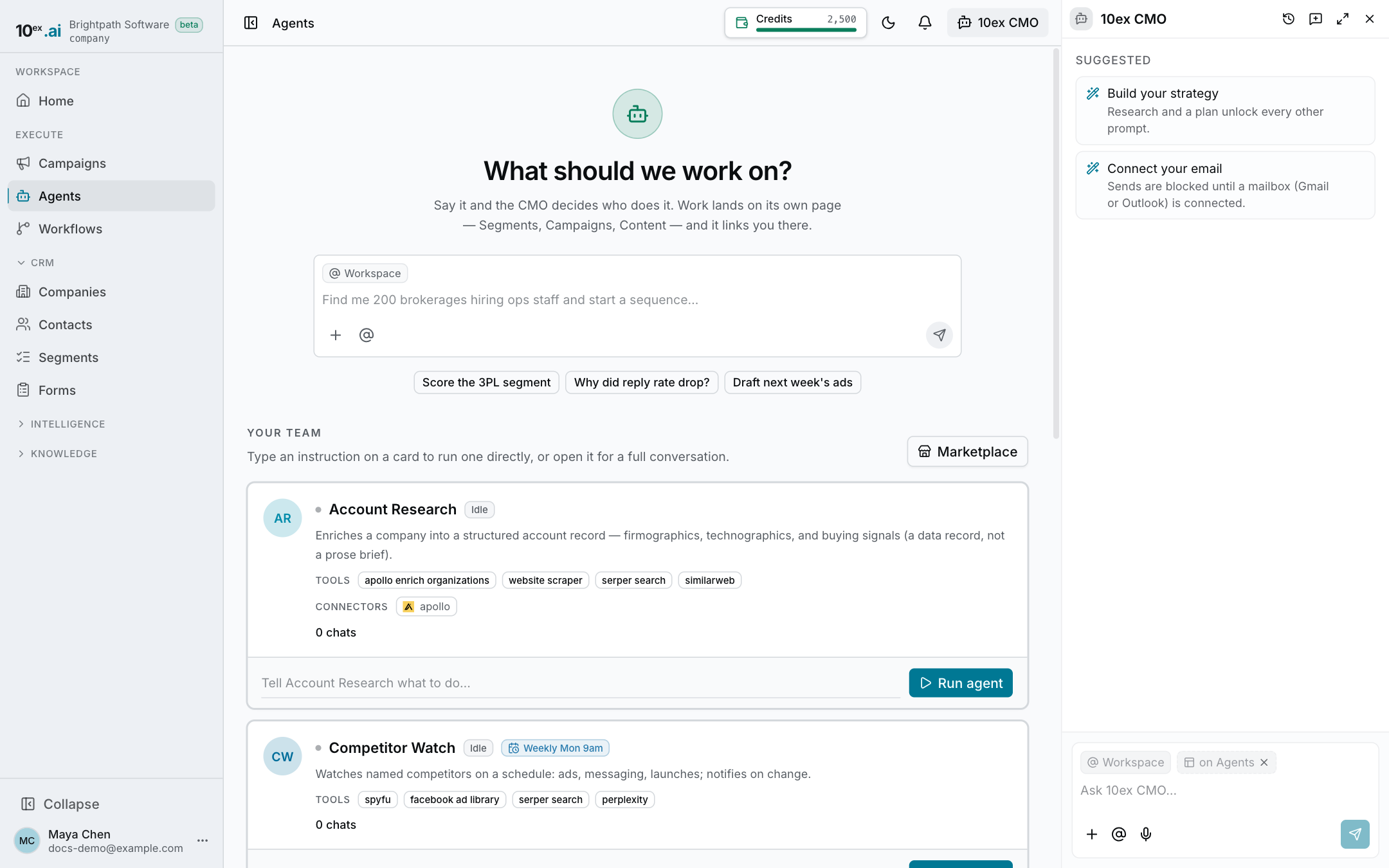
Agents (https://app.10ex.ai/agents ) is your team. Each agent has a card showing what it does, when it last ran and whether it is working, waiting for you or failed. Click a card to open the agent’s room, which is a chat with that agent.
You can also ask the CMO to run an agent for you from any page. See CMO chat.
Hire an agent
There are three ways to get a new agent. Agents → New agent lists them:
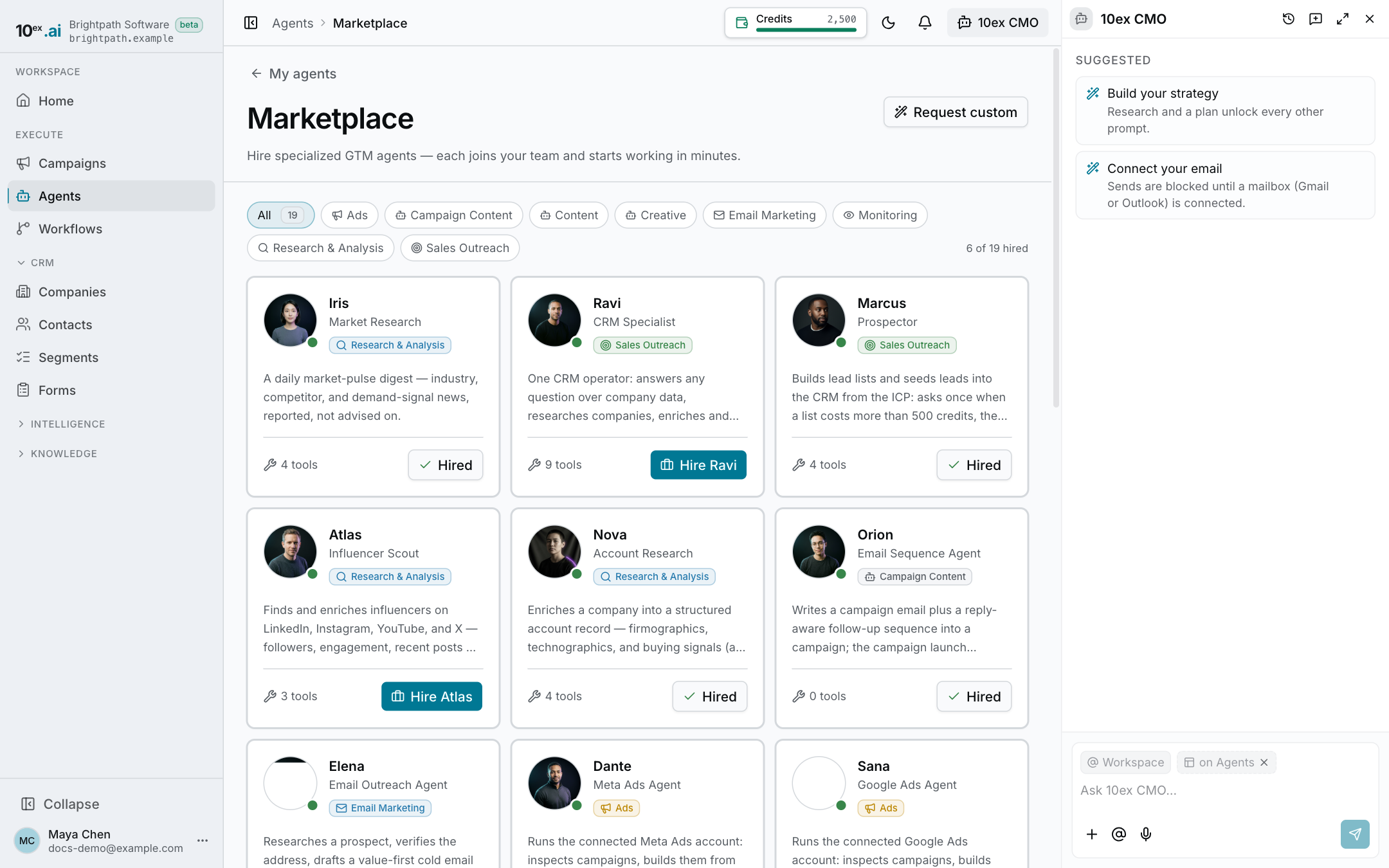
- From the marketplace. Click Marketplace on the Agents page, find the agent you want and click Hire (the button carries the agent’s teammate name, for example Hire Marcus). It joins your team right away. The agent catalog lists all 19, grouped by what they do.
- Ask the CMO. Describe the agent you want in the chat and the CMO builds it from your description.
- Have us build it. Click Request custom on the Marketplace (or Have us build it on New agent), give it a name and say what it should do. The 10ex team builds it by hand. The request also shows up under Settings → Support.
Some agents need a connected account before they can work, such as a mailbox, an ad account or Apollo. The agent’s card and its Settings tab show what is missing, with a Connect button. See Integrations.
Run an agent
There are two ways to run one:
- From its card. Type an instruction in the box on the card (“Find 50 VP Marketing at fintech companies”) and send it.
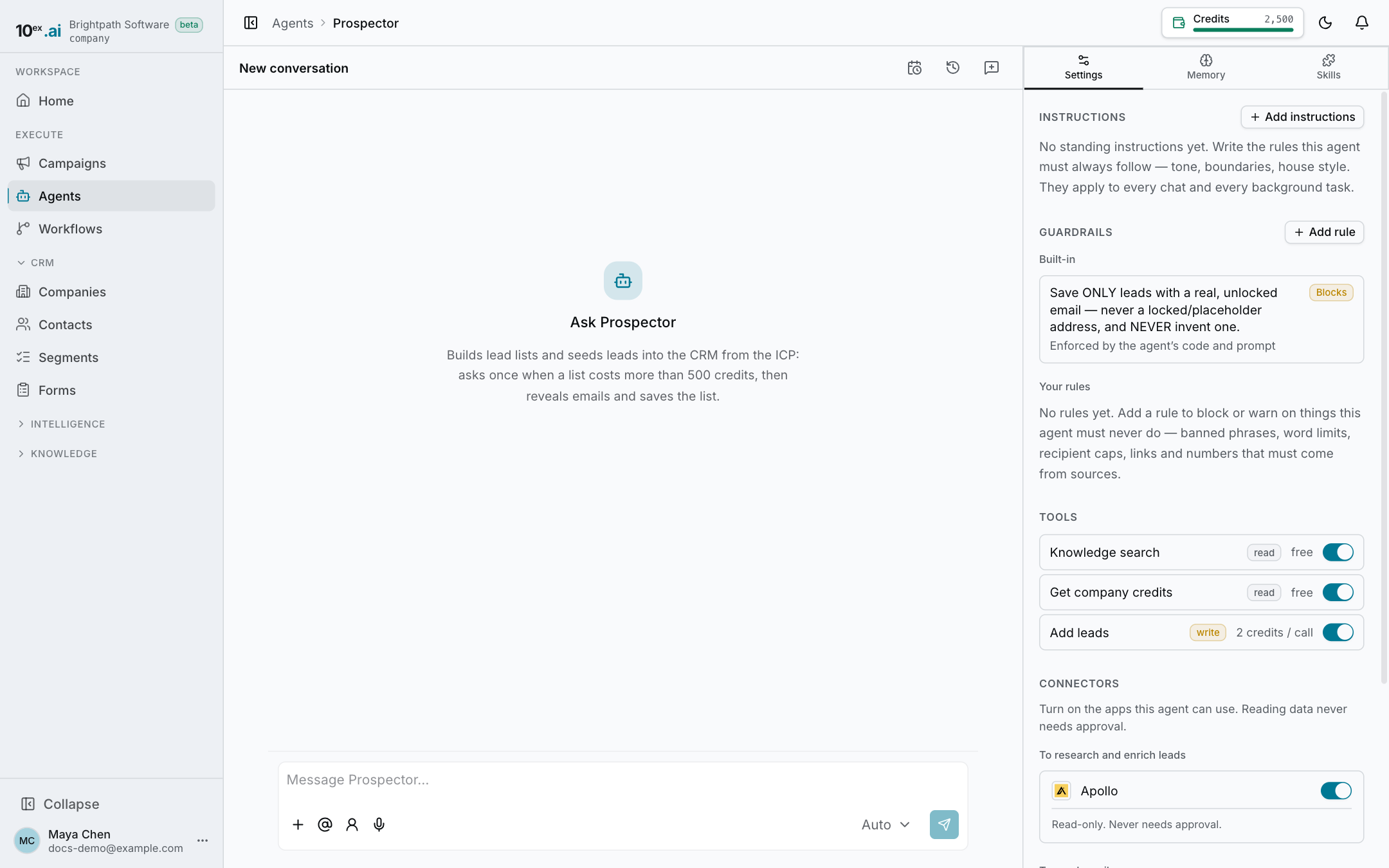
- From its room. Open the agent for a full conversation. The agent asks for anything it needs, does the work and shows each step as it goes.
While a run is in progress the button turns into Stop. Click it to cancel.
If you run an agent with a lead or a segment in mind, pick it with the lead target chip in the room’s composer. You can pick one lead or one segment.
Your role needs permission to run agents. Viewers can’t. See Roles and permissions.
Run on a list
To run the same agent over many rows, click Run an agent on a segment page. The Run an agent on a list dialog opens:
- Pick the Agent.
- Choose where the rows come from: a Lead list (a segment), or paste rows, one value per line, into one of the agent’s inputs.
- Check the cost. It shows the number of rows, the credits per row and the credits you have.
- Map fields: match each input the agent needs to a column in your rows. Fill in any input the rows don’t carry once, for the whole batch.
- Click Start. The agent room opens and shows the batch as it runs.
The dialog tells you plainly why a batch can’t start: an empty list, too many rows, bad inputs, a batch already running, or not enough credits.
Approve what it does
Agents that send, publish or change something outside 10ex stop and ask first. A run in this state shows Waiting for your approval on its card and in the room. Click Approve to let it continue, or reject it with a reason. You can edit an email’s subject and body before approving.
Which actions need approval is controlled by guardrails and by each agent’s own settings, covered below. For the idea behind it, see Approvals and guardrails.
Customize an agent
Open the agent and use the Settings tab in the right-hand panel.
Instructions
Standing rules the agent always follows, written in plain text, for example “Write in a friendly, direct tone” or “Never contact leads at competitor domains”. Click Edit (or Add if it has none), type up to 8,000 characters and click Save. Each save keeps the previous version.
Writing model
Image and video agents show a Writing model setting. It controls the model that writes the prompt and answers in chat. Other agents pick their model in the small selector next to Send in the composer. Auto uses the model your company set in Settings → Models & providers.
Guardrails
Rules for the agent’s output. Built-in rules are listed read-only, each marked as blocking or warning. You can add your own, such as:
- words the agent must never say, or must always include
- a word or character limit
- a cap on recipients
- links and numbers must come from sources
- no unconfirmed claims
- a custom rule, judged by a model
When a run breaks a blocking rule, its card says Requirements not met. When it finishes with warnings, it says Guardrail notes.
Tools
Every tool the agent can use, with an on/off switch and its real credit cost per call, or “free”. Tools that can change something show whether they Need approval or Run automatically and where that setting comes from. People who can approve decisions get an Ask before running switch under the tool, and Use company default to remove the agent’s own override.
Connectors
Each connector the agent can use has a Use in this agent switch. For connectors that can write (send, edit, delete), an Auto-approve line says what happens now: when it is on, those actions run without asking. Read-only connectors say “Read-only. Never needs approval.” Only someone who can approve decisions can turn auto-approve on.
Memory
The Memory tab holds what the agent knows.
- Memories are short facts. Add, edit or delete them yourself. Each one is labeled by where it came from: company truth, your preference, learned, or noted by the agent.
- Lessons from approvals. When you edit an agent’s output before approving, approve it, or reject it with a reason, the agent keeps a lesson from it, labeled Learned from your edit, Learned from an approval or Feedback.
- Feedback lists the thumbs-up and thumbs-down ratings you gave its replies (Helpful reply, Not helpful).
See Knowledge and memory for how memory is used.
Skills
The Skills tab lists, by name, the skills this agent uses. Skills built into the agent can be removed. Open a skill to see or edit it. See Skills.
Schedule an agent
Open the agent’s room and click Schedule this agent. The Schedule sheet has one box. Type the whole schedule as a sentence:
- “Every Monday at 9am, VP Marketing and CMOs at fintech”
- “Weekdays at 8am”
- “Tomorrow at 9am”
10ex splits it into when and what to work on, and reads both back to you with the timezone and the next run time. If the agent needs an input you didn’t give, the sheet asks for it right there, with suggestions from your own data.
To change the time, click Edit on the “when” line. The picker has:
- Repeats: Once, Hourly, Daily, Weekdays, Weekly, Monthly or Custom (a cron expression)
- Ends: Never, or on a date
- the timezone, with Change
Click Schedule (or Save when editing). A schedule 10ex can’t read exactly is refused instead of guessed. “Tomorrow at 9am” is one run, not a daily one. You can also ask the CMO in chat to set an agent’s schedule and it will confirm the timezone with you.
The agent’s card shows when it runs next. Click the Live / Paused flag on the schedule to pause or resume it. Nothing runs while it is paused, and the card says so. An agent can always still be run by hand.
Give feedback
Use the thumbs-up and thumbs-down under an agent’s replies. Your ratings are listed under the agent’s Memory tab, where you can delete any of them.
Limits worth knowing
- Agents spend credits. The cost of a run depends on the tools it uses. A batch shows the estimate before you start it. See Credits and billing.
- Prospector asks before spending more than 500 credits on a list.
- Your role decides who can run agents, edit them and approve their actions. See Team and roles.