Contacts
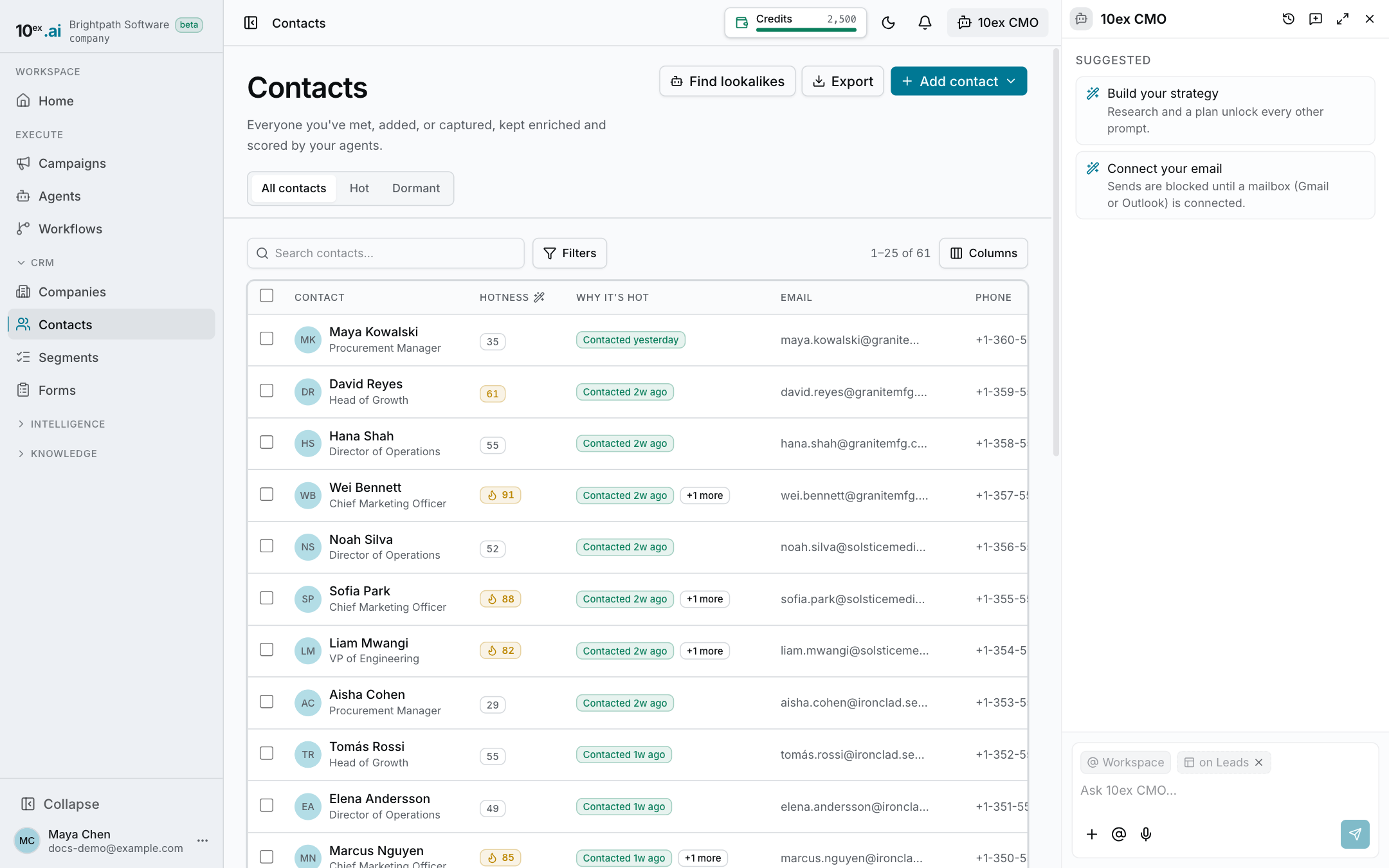
Contacts lists everyone you’ve met, added, or captured. Your agents keep them enriched and scored. The page lives at /leads in the app.
Add contacts
Click Add contact and pick one:
- Add by hand: name, email, title, company, stage, and an optional signal (why this person is in your CRM today).
- Scan a QR or business card: see Scan a card below.
Contacts also arrive from:
- CSV import: go to Segments → Import CSV. See Segments.
- Forms: every web form and ad lead form submission. See Forms.
- The Prospector agent: it finds people who match your ideal customer and saves them as a list.
- Connect cards: people who scan your 10ex card and connect.
10ex matches contacts by email, so the same person isn’t added twice.
Scan a card
Open Add contact → Scan a QR or business card. Point your camera at a code, or paste a link.
- A 10ex connect card QR opens that person’s card, and you’re saved in each other’s CRM.
- A LinkedIn QR or profile link looks the person up and saves them when an email is found. If no email is found, you’ll be asked for one.
- Photograph a business card reads the card and shows Check the card so you can fix the name, email, title, company, phone, and LinkedIn before saving.
- No QR? Add by hand takes a name and email.
Your own connect card
Set up your public card in Settings → Profile → Public profile & QR. My code shows a QR you can share or save to your photos. When someone scans it and signs in with Google, you both get each other as a contact.
Find the right people
Tabs and saved views
- All contacts: everyone.
- Hot: contacts with a Hotness score of 50 or more.
- Dormant: no form fill or email open, click, or reply in the last 30 days.
Set up filters, a sort, and columns, then click New view to save them under a name. Saved views show up as tabs.
Filters
Click Filters to open the filter panel. Search the property list on the left (contact, pipeline, engagement, company, membership, and custom properties), then set the condition on the right.
Columns and sorting
Use Columns to show or hide columns, including an optional Source column. Click a header to sort, and click again to reverse. Contacts with no score always sort last.
Hotness and Inpulse scores
The Hotness column shows each contact’s stored score. A flame marks 80 and above, warm is 60 to 79, and ”—” means not scored yet. Hover the score to see why it was given. Why it’s hot shows the recorded facts behind it, best first.
To score contacts, click the wand next to the Hotness header (Score with Inpulse). Pick Current filters or All leads. The dialog shows how many contacts will be scored and the credit cost before you start.
Score bands:
| Score | Meaning |
|---|---|
| 80–100 | Engaged |
| 60–79 | Clear ICP match |
| 40–59 | Complete, but not a match |
| 0–39 | Thin data or poor fit |
Find lookalikes
Click Find lookalikes to find more people like the ones in your current view. The dialog is prefilled with the most common title, industry, seniority, and country among them, and you can edit it. It runs the Prospector agent, which costs 2 credits per contact found, and saves the results as a new list. People already in your CRM are skipped.
Bulk actions and export
Select rows to open the bulk bar above the table, for example Set status… or delete.
Export downloads a CSV of every contact matching your filters, up to 5,000 rows.
Export and delete need the right role. If yours doesn’t have them, the buttons are greyed out with a note.
The contact page
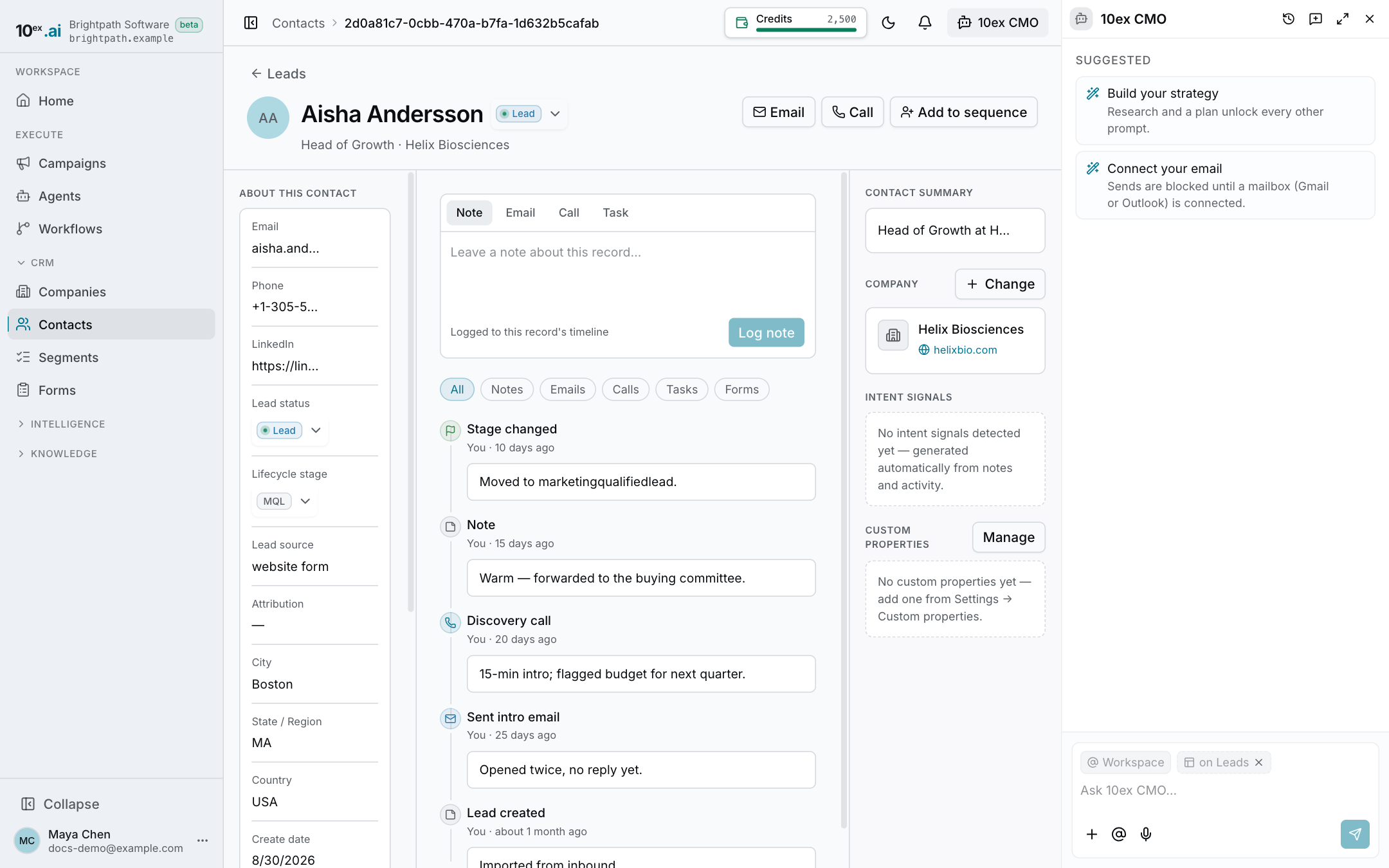
Click a contact to open the record.
Left: About this contact. Email and phone (with copy, email, and call buttons), LinkedIn, status, source, location, dates, owner, and the Inpulse score with its reason. Hover a field and click the pencil to edit it. Contacts from a web form also show the utm_source, utm_medium, and utm_campaign of their first visit.
Center: Activity. Log a Note, Email, Call, or Task, and filter the timeline by type. Tasks have a title, due date and time, assignee, type (Call, Email, To-do), priority, reminder, and repeat. Open tasks sit at the top.
Right. Contact summary, the company (click to open it, or associate a different company), and intent signals.
Statuses
Status options are New, Prospect, Open, In progress, Open deal, Unqualified, Attempted to contact, Connected, and Bad timing. Change it inline in the list or on the record. Lifecycle stage (Subscriber, Lead, MQL, SQL, Opportunity, Customer, Evangelist, Other) is a separate field that the MQLs tile on Home counts.