Send your first email campaign
In this tutorial you send one email to a segment of your contacts, with an optional follow-up. It takes about 10 minutes.
What you’ll learn
- How to connect the mailbox your campaigns send from
- How to compose, personalize and test an email
- How launch, scheduling and follow-ups work
Before you start: a Gmail or Outlook mailbox, and at least a few contacts in a segment. No contacts yet? See Contacts to import a CSV, then Segments to group them.
1. Connect a mailbox
- Open Settings → Integrations.
- Under Email, click Connect on Gmail or Outlook and sign in.
Emails are sent from your own mailbox, so replies land in your inbox. See Integrations for details.
2. Start an email campaign
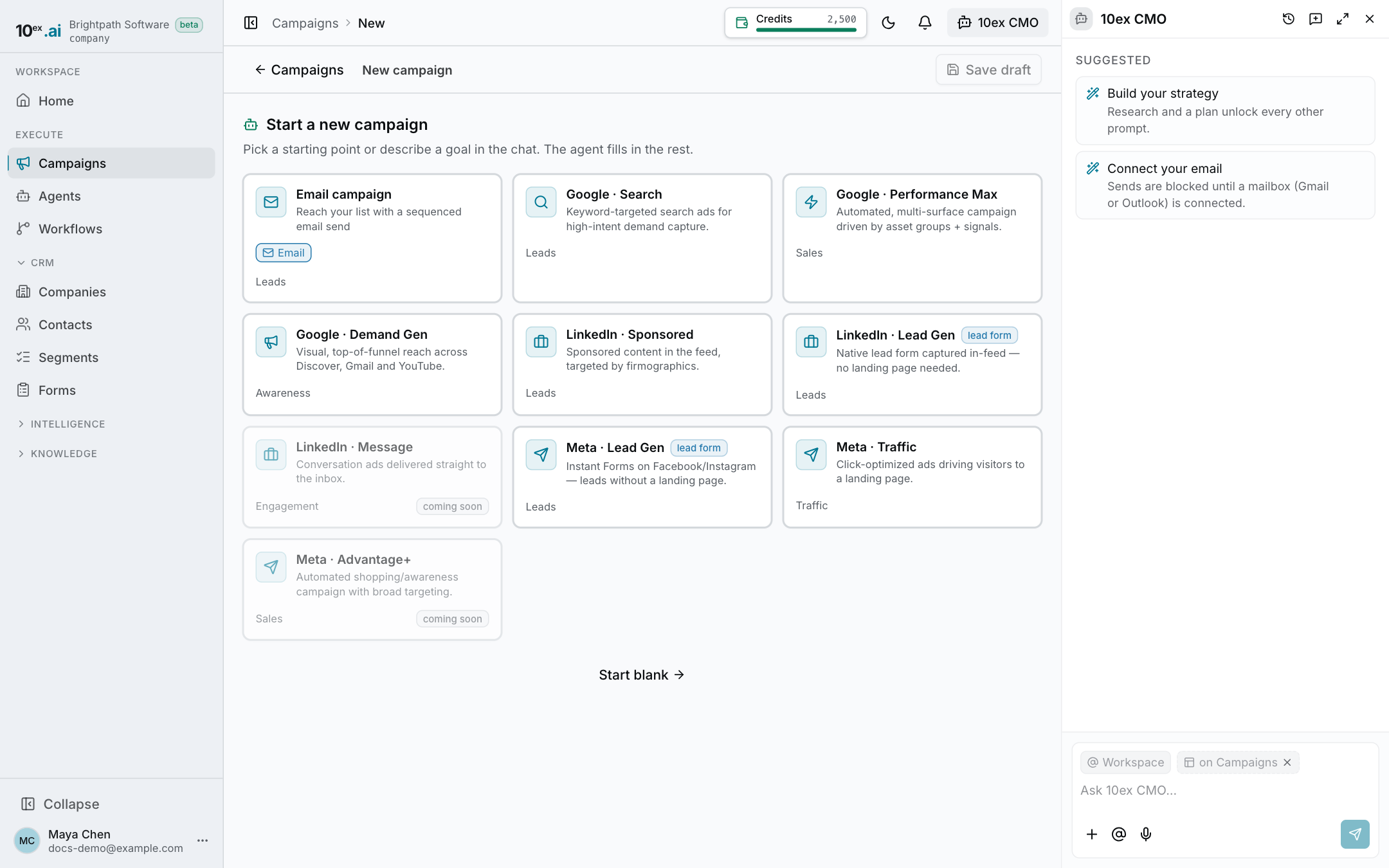
- Go to Campaigns and click New campaign.
- Under Start a new campaign, pick Email campaign.
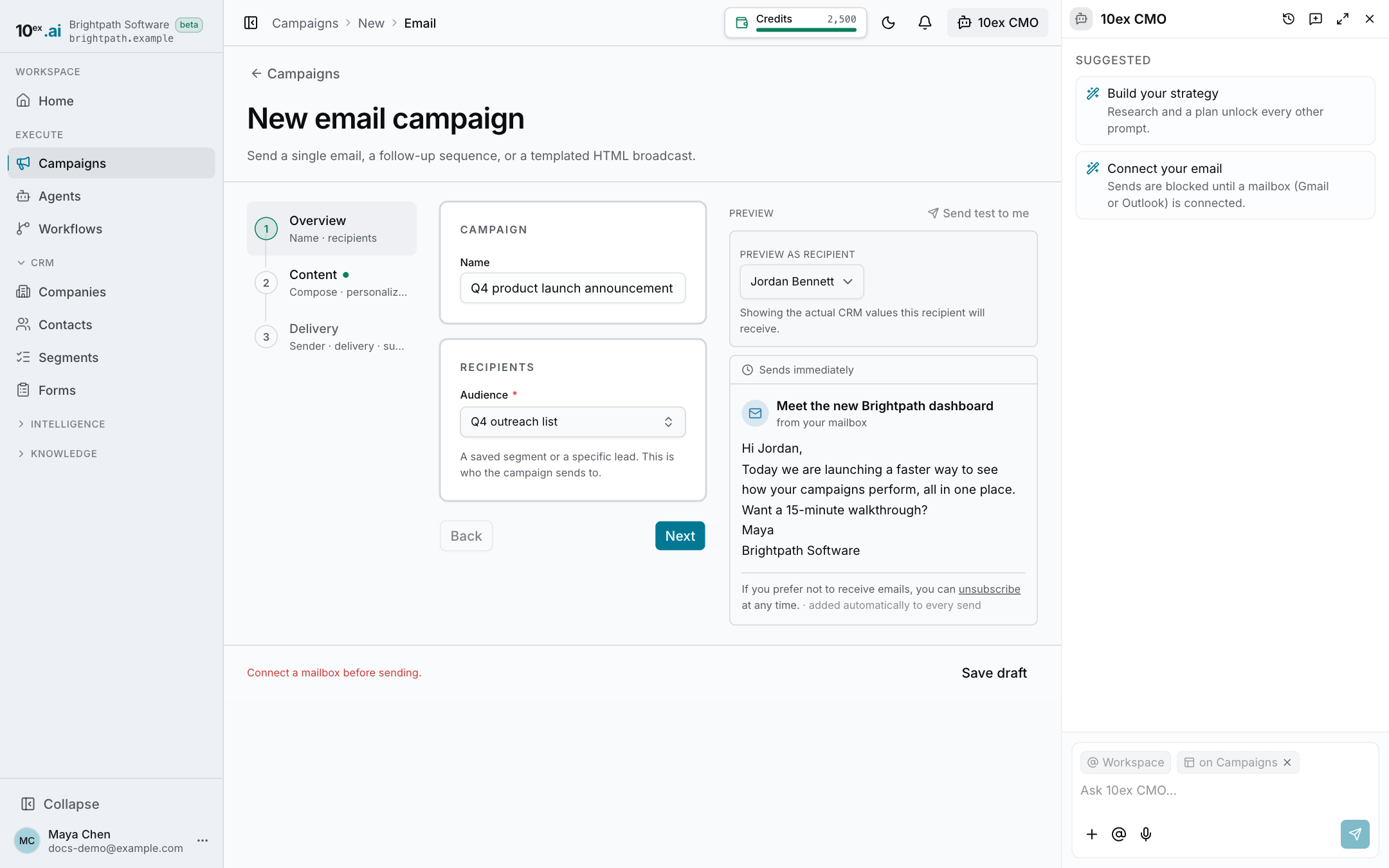
The New email campaign form opens. It has three steps: Overview, Content and Delivery.
3. Overview: name and recipients
- Give the campaign a name.
- Under Recipients, pick a segment or individual contacts.
Contacts on your suppression list, or in a segment you exclude later, are skipped. If every selected recipient would be skipped, the form tells you before you can continue.
4. Content: write the email
- Write a subject line. Merge tags like
{{first_name}}fill in each recipient’s details. - Write the body in the editor. Select text to edit it with AI, or use the toolbar to add an image.
- Or click Draft with AI, describe what the email is about, who it’s for and what they should do, and click Draft email. The AI replaces the current subject and body, written in your brand voice.
Optional extras on this step:
- Signature: tick Add my signature to every send.
- Follow-ups: add follow-up emails, each with its own content and a later send day.
- Personalization: tick Personalize each email per recipient to have AI draft a separate version for each person. This adds a fourth step, Review & launch, where you read and approve the drafts before anything sends.
Click Send test to me to see the email in your own inbox first.
5. Delivery: sender and timing
- Under Sending identity, check the From name, the Reply-to address and the Sending mailbox.
- Under Suppression, add any segments you don’t want to email in Don’t send to.
- To send later, tick Schedule this campaign to send later and pick a date and time. Otherwise the first email goes out when you launch.
6. Launch
Click Launch campaign. The campaign goes live and the first email sends. Follow-ups send on their scheduled days.
If the campaign isn’t ready, for example no mailbox is connected or there’s no subject, the button tells you what’s missing.
Each email sent costs 1 credit. See Credits and billing.
7. Track results
Open the campaign from Campaigns. The Analytics tab shows delivered, opened, replied and bounced counts.
To end an email campaign early, click Stop. This cancels the emails that haven’t been sent yet.
Next steps
- Read the full Email campaigns guide.
- Automate a welcome email for every new lead with a workflow.